

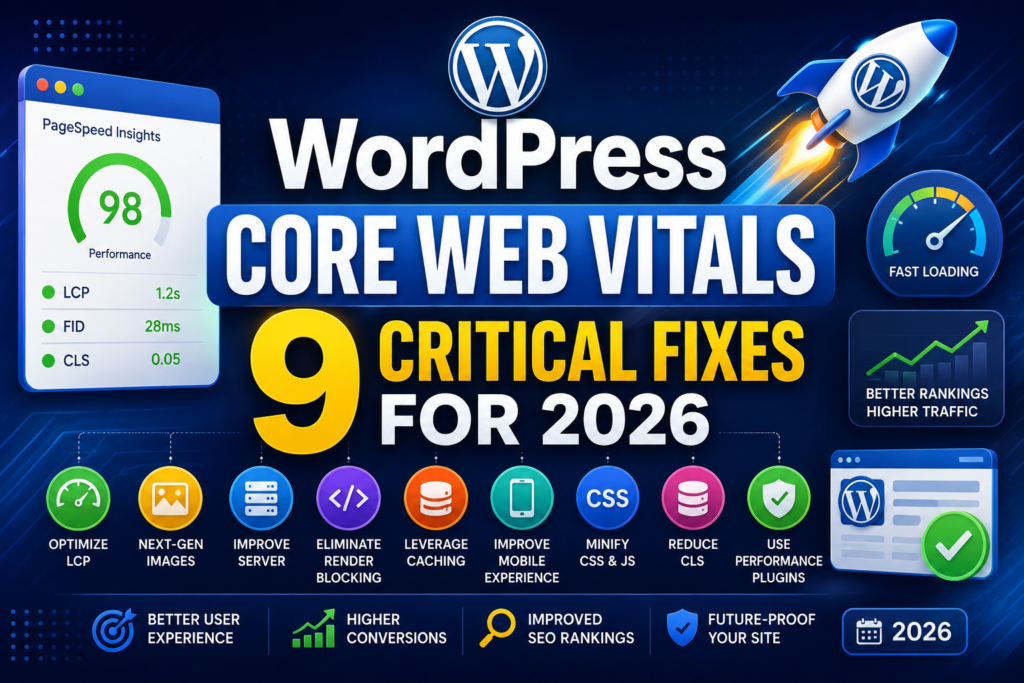
Core Web Vitals are a set of metrics Google uses to measure real-world page experience. They are not the only ranking factor, and a slow page can still outrank a fast one if its content is dramatically better. But Google has confirmed page experience is a
tie-breaker signal, and slow sites consistently lose visitors before they ever see your content.
WordPress sites are especially prone to Core Web Vitals problems because of how the platform is built: themes, page builders, and plugins each add their own CSS and JavaScript, and that stacks up fast. A default WordPress install is lean. A typical production site with a page builder, five plugins, and an ad network usually isn’t.
This guide walks through a practical, order-of-operations checklist to improve WordPress Core Web Vitals in 2026, without touching a line of code.
The WordPress Core Web Vitals Checklist at a Glance
Here is the full WordPress Core Web Vitals checklist in one place. Each item is explained in detail further down the page.
- Measure your current scores with PageSpeed Insights and Search Console, segmented by mobile and desktop.
- Optimize your Largest Contentful Paint element (usually a hero image or heading).
- Reduce JavaScript execution time to improve Interaction to Next Paint.
- Set explicit dimensions on every image and embed to prevent layout shift.
- Install one caching plugin, not three overlapping ones.
- Compress and lazy-load images correctly, including above-the-fold exceptions.
- Audit every active plugin for unnecessary front-end scripts.
- Choose a lightweight, well-coded theme over a heavy page builder theme where possible.
- Re-test after every change, not just once at the end.
Step 1: Measure Your Current WordPress Core Web Vitals Scores
You cannot fix what you have not measured. Start with Google’s free PageSpeed Insights tool, which reports both lab data (a simulated test) and, for sites with enough traffic, real-world field data from the Chrome User Experience Report.
Field data matters more than lab data for rankings, because it reflects what actual visitors on real devices and networks experienced. If your site is too small for field data, lab data is still useful for diagnosing specific problems.
Also check the Core Web Vitals report inside Google Search Console. It groups your URLs by status (Good, Needs Improvement, Poor) and by metric, which tells you whether you have a template-wide problem or a handful of bad pages.
Test both mobile and desktop separately. Mobile scores are almost always worse, and mobile is what Google primarily evaluates for ranking purposes under mobile-first indexing.
Step 2: Fix Largest Contentful Paint (LCP)
LCP measures how long it takes the largest visible element, usually a hero image, video thumbnail, or large block of text, to render. Google’s threshold for “good” is 2.5 seconds or less, measured at the 75th percentile of page loads.
On most WordPress sites, LCP problems trace back to one of four causes:
- Slow server response (TTFB). If your hosting is slow to generate the first byte, every other metric suffers downstream. If you have not addressed this yet, see our deep dive on how to optimize TTFB for faster LCP before anything else.
- Unoptimized hero images. A 4MB PNG hero image will tank LCP every time. Convert to WebP or AVIF and compress aggressively.
- Render-blocking CSS and JavaScript. Scripts and stylesheets loaded in the
<head>delay rendering until they finish downloading and executing. - Missing image preloads. If your LCP element is a background image set via CSS, browsers discover it late. A
<link rel="preload">tag (most performance plugins add this automatically) fixes that.
Practical fix order: upgrade or tune your hosting first, compress your hero image second, then let a caching plugin handle CSS/JS delivery and preloading. Most gains come from the first two steps alone.
Step 3: Reduce Interaction to Next Paint (INP)
INP replaced First Input Delay as an official Core Web Vital in 2024 and measures the full responsiveness of a page from the moment a visitor clicks, taps, or types to the moment the browser visually responds. Google’s “good” threshold is 200 milliseconds or less.
INP problems on WordPress almost always come down to JavaScript: too much of it, executing at the wrong time, blocking the browser’s main thread. Common culprits include:
- Heavy page builders (Elementor, Divi, and similar tools) that load large JS bundles on every page, even pages that do not use their advanced features.
- Third-party embeds: chat widgets, popup builders, social share buttons, and marketing pixels that each add their own script.
- Plugins that load their assets site-wide instead of only on the pages where they are actually used.
To improve interactivity without a developer, audit your plugin list first. Deactivate anything you are not actively using. For scripts you need but that do not need to run immediately, use your caching plugin’s “defer” or “delay JavaScript execution” setting, which postpones non-critical scripts until after the page becomes interactive.
Step 4: Eliminate Cumulative Layout Shift (CLS)
CLS measures unexpected layout movement — the frustrating moment when you go to tap a button and the page jumps because an ad or image loaded late. Google’s “good” threshold is a score of 0.1 or less.
On WordPress, CLS almost always comes from one of these four patterns:
- Images without width and height attributes. Without them, the browser cannot reserve space before the image loads, so content shifts down once it does. Modern WordPress adds these automatically for images in the content editor, but theme and widget images often skip it.
- Web fonts that swap in late. Use
font-display: swapor, better, self-host and preload your fonts so text does not jump when a custom font replaces the system fallback. - Ads and embeds injected above existing content. Reserve a fixed-height container for ad slots and embeds rather than letting them push content down when they load.
- Dynamically injected banners. Cookie consent bars and promotional bars that insert themselves at the top of the page after load push everything else down. Reserve space for them in your theme’s CSS instead.
CLS fixes are mostly one-time structural changes rather than ongoing maintenance, which makes this the step with the best effort-to-result ratio on this checklist.
Step 5: Pick a Caching Plugin That Actually Helps
A good caching plugin handles a lot of this checklist automatically: page caching, CSS/JS minification, deferred script loading, and image lazy-loading. Running more than one at a time usually causes conflicts rather than compounding the benefit, so pick one.
| Plugin | Best For | Pricing | Notes |
|---|---|---|---|
| WP Rocket | Non-technical site owners who want sensible defaults | Paid | No free tier, but minimal configuration needed out of the box. |
| LiteSpeed Cache | Sites on LiteSpeed-powered hosting | Free | Server-level caching plus built-in image optimization when your host supports it. |
| WP Super Cache | Budget-conscious sites with simple needs | Free | Official Automattic plugin; fewer advanced controls than paid options. |
| Perfmatters | Sites that already cache but need script control | Paid | Not a caching plugin itself; pairs with one to disable unused scripts per page. |
Whichever you choose, test your site immediately after activation. Aggressive minification settings occasionally break theme layouts, which can introduce new CLS problems while fixing LCP.
Step 6: Optimize Images Without Hurting Image SEO
Images are usually the single biggest contributor to page weight on a WordPress site, and they directly affect both LCP and CLS. The fix is not to remove images; it is to serve them correctly.
- Use modern formats. WebP and AVIF produce smaller files than JPEG or PNG at equivalent visual quality. Most image optimization plugins convert automatically and serve WebP/AVIF to supporting browsers via the
<picture>element. - Resize before you upload. Do not upload a 4000px-wide photo and let CSS shrink it to 800px; resize the source file first.
- Keep alt text descriptive. Beyond accessibility, descriptive alt text supports image SEO and helps your images surface in Google Image Search, a free traffic channel most sites underuse.
- Lazy-load below-the-fold images only. WordPress lazy-loads images by default, but your LCP image should be explicitly excluded from lazy-loading (most performance plugins have a setting for this), since delaying your most important image works against you.
Common Mistakes That Wreck WordPress Core Web Vitals Scores
Even sites that follow most of this checklist still trip on a few recurring mistakes. Watch for these:
- Testing only the homepage. Your product pages, blog posts, and category archives often use different templates with different scripts. Test a representative sample, not just one URL.
- Chasing a perfect lab score. A 100/100 PageSpeed lab score does not guarantee good field data from real visitors on slower networks and older phones. Prioritize field data.
- Installing a “speed plugin” without removing the old one. Overlapping caching or minification plugins frequently cause more problems than either alone.
- Ignoring third-party scripts. Your own code might be lean while a single analytics or chat tool silently adds 500ms of blocking JavaScript.
- Skipping re-tests. Core Web Vitals field data is a rolling 28-day average. Changes take time to show up; do not panic-fix the same thing twice within a week.
Who This Checklist Is For (and Who Should Hire a Developer)
This WordPress Core Web Vitals checklist is written for site owners, bloggers, and small marketing teams managing their own WordPress install without a dedicated developer. If you can install a plugin and edit a page, you can complete every step here.
It is not a substitute for custom development if you are running a high-traffic e-commerce store, a site with heavy custom functionality, or a build where your theme itself is poorly coded at a structural level. In those cases, a caching plugin can only do so much; the fix is architectural, and a WordPress performance developer is worth the cost.
A rough signal: if you have gone through this entire checklist and your LCP is still above 4 seconds, the bottleneck is likely your hosting or theme code, not configuration, and it is time to get expert help.
Running a speed test before and after each change on this checklist is the only way to confirm your WordPress Core Web Vitals scores actually improved.
FAQ
How long does it take to improve WordPress Core Web Vitals scores?
Lab score improvements show up immediately after you make a change. Field data in Search Console updates on a rolling 28-day basis, so allow two to four weeks before judging whether a fix actually moved your real-world scores.
Do Core Web Vitals directly affect WordPress SEO rankings?
Google has confirmed page experience, including Core Web Vitals, is one of many ranking signals and acts primarily as a tie-breaker between pages of similar content quality. Strong content with mediocre speed usually still outranks thin content with perfect speed.
Which Core Web Vital should I fix first?
LCP, generally, because slow server response and unoptimized hero images tend to be the easiest wins with the biggest measurable impact, and fixing hosting issues often improves INP and CLS indirectly too.
Can a caching plugin alone fix all three metrics?
It can meaningfully improve LCP and INP through minification, deferred loading, and caching. CLS usually needs manual fixes: image dimensions, font loading, and reserved ad space — that a caching plugin cannot automate.
Is GTmetrix or PageSpeed Insights more accurate for WordPress?
They measure different things. PageSpeed Insights is the authoritative source for Google’s field data since it pulls from the Chrome User Experience Report; GTmetrix is useful for deeper lab-level waterfall debugging.
Improving WordPress Core Web Vitals is not a one-time project; it is a checklist you revisit every time you add a plugin, switch themes, or redesign a page. Start where the data points you: run PageSpeed Insights right now, identify whether LCP, INP, or CLS is your worst offender, and work that single section of this guide before touching the others.
If your server response time is part of the problem, start with our guide on optimizing TTFB for faster LCP, since it addresses the one factor that affects every other metric downstream. And if you are still running an older WordPress version, check what changed in WordPress 7.1’s new features and the 7.1.2 security update, since core updates occasionally ship performance improvements alongside fixes.


Leave a response