

To update LiteSpeed Cache, open your WordPress dashboard, go to Plugins, and click Update Now next to LiteSpeed Cache, then confirm you are on version 7.9.2 or later. That single update closes two real vulnerabilities disclosed in October 2026: a sensitive data exposure bug (CVE-2026-114190) and a high-severity stored XSS flaw (CVE-2026-113499). If you run LiteSpeed Cache on a live site, this matters. The rest of this guide walks through how to update LiteSpeed Cache safely, purge what might already be cached, and lower your exposure going forward.
LiteSpeed Cache runs on more than 7 million WordPress sites, based on the plugin’s own active install count on WordPress.org. It is also active on DevByteDaily, which is one reason this topic made today’s list.
Why You Need to Update LiteSpeed Cache Right Now
Security researcher Ananda Dhakal reported a sensitive data exposure issue in LiteSpeed Cache to Patchstack on August 18, 2026. Patchstack published the advisory on October 22, 2026, with a CVSS score of 5.9 and no authentication required to exploit it, according to the Patchstack vulnerability listing.
Hosting news site webhosting.today laid out the mechanics in a detailed writeup on October 29, 2026. On an affected site, an unauthenticated request can pull back data that should require administrator access. Three conditions have to line up for the issue to matter:
- REST API caching is turned on, which is the plugin’s default setting.
- The site uses plain permalinks, the kind that look like example.com/?p=123.
- Something on the site makes admin-level REST calls without a cookie, such as a mobile app, a headless front end, or a backup tool that authenticates with an application password.
If all three are true, a cached response containing sensitive data can sit in the REST cache for up to seven days by default. A scheduled cron purge will not clear it. Only a manual Purge All does.
LiteSpeed shipped the fix in version 7.9.1 on September 1, 2026, roughly two weeks after the report, according to the plugin’s own changelog on WordPress.org. The public advisory came out about seven weeks after that, which is a normal gap between a private fix and public disclosure.
A second, more serious issue followed close behind. Patchstack credits researcher Jakub Herman with finding an unauthenticated stored cross-site scripting flaw, tracked as CVE-2026-113499, with a CVSS score of 7.5. LiteSpeed patched it in version 7.9.2, released October 20, 2026. Stored XSS lets an attacker plant a script that runs in a visitor’s browser, which can be used to steal session data or hijack logged-in accounts.
Neither flaw is exotic. Both are the kind of bug that shows up in any plugin handling REST endpoints and cached output. What matters is how long it takes site owners to update LiteSpeed Cache once a fix ships. The adoption numbers later in this guide suggest many have not.
Think about what “sensitive data exposure” actually means on a WordPress REST endpoint before you decide this does not apply to you. Admin-level REST responses can include user email addresses, site configuration values, and in some setups, data tied to connected services. None of that needs to leak for an attacker to find it useful, and a cached copy sitting for seven days gives a wide window to look.
It is also worth separating the two fixes, since they protect against different things. The sensitive data exposure bug is about a cached response showing data to someone who should not see it. The stored XSS bug is about an attacker planting code that later runs in someone else’s browser. Updating to 7.9.2 covers both, which is the simplest reason to treat this as one update rather than two separate decisions.
How to Update LiteSpeed Cache in 6 Steps
You can update LiteSpeed Cache itself in under a minute on most sites. The steps below add the checks that matter for this specific vulnerability: confirming your version, backing up, and purging any cache that may already hold exposed data.
Step 1: Check Your Current LiteSpeed Cache Version
In your WordPress dashboard, go to Plugins > Installed Plugins and find LiteSpeed Cache in the list. The version number sits directly under the plugin name. Anything below 7.9.2 is missing at least one of the two fixes described above.
If you manage several sites, it is faster to check through WP-CLI. Run wp plugin list --name=litespeed-cache from the site’s root directory and read the version column in the output.
Do not rely on memory for this. I usually recommend treating the version check as its own line item rather than assuming an update went through because you clicked a button weeks ago. Auto-updates can silently fail if a site runs low on disk space or a file permission changes. A quick look at the actual number beats an assumption.
Step 2: Back Up Your Site Before You Update LiteSpeed Cache
Plugin updates rarely break a site, but a caching plugin touches enough of the stack that I usually recommend a backup first regardless. Use whatever backup tool your host provides, or a plugin like UpdraftPlus or Duplicator if you manage backups yourself.
A current backup also means you can purge cache and test settings in the next few steps without worrying about losing anything if a setting reverts unexpectedly.
Step 3: Update LiteSpeed Cache From the WordPress Dashboard
Go to Plugins > Installed Plugins, find LiteSpeed Cache, and click Update Now. WordPress downloads the new version and reactivates it automatically. This is the simplest way to update LiteSpeed Cache on a single site. It works whether you are moving from 7.9 or from an older branch like 7.8 or 7.6.
Once the page refreshes, confirm the version number shows 7.9.2 or higher. If an older major version blocks the update because of a changed minimum PHP or WordPress requirement, check the plugin’s requirements on its WordPress.org page before forcing anything.
Step 4: Update LiteSpeed Cache With WP-CLI or lscmctl (For Hosts and Agencies)
Managing a fleet of sites one dashboard at a time does not scale. WP-CLI handles it directly: wp plugin update litespeed-cache updates the plugin on a single install, and the same command can run in a loop across multiple site directories.
On servers running LiteSpeed’s own web server product, the lscmctl command-line tool can push the plugin update at the server level, which webhosting.today’s reporting flags as the fastest path for cPanel and WHM environments managing many WordPress installs at once.
A simple shell loop makes the WP-CLI route practical across a fleet. Loop over a list of site paths and run the update command against each one. That turns a 50-site update job into a script you can rerun on a schedule, instead of 50 separate dashboard visits.
Step 5: Purge All Cached Data Manually
This step matters specifically because of how the vulnerability works. If your site met the three conditions above before you patched, a sensitive REST response could still be sitting in cache even after you update LiteSpeed Cache to 7.9.2.
Go to LiteSpeed Cache > Toolbox in your dashboard and click Purge All. A scheduled or automatic cache purge is not a substitute here. Only a manual Purge All clears the REST cache entries that this specific issue affects.
If your setup also uses a separate object cache through Redis or Memcached, clear that layer too. LiteSpeed Cache’s object cache settings sit on their own tab, and a stale object cache can hold old data even after the page and REST caches are clean.
Step 6: Confirm the Fix and Re-Check the Version Number
After you update LiteSpeed Cache and purge the cache, go back to Plugins > Installed Plugins one more time and confirm the version still reads 7.9.2 or later. Some multisite and staging setups silently revert a plugin version if a sync job runs on a schedule, so a second check a day later is worth the thirty seconds it takes.
If you manage this through a staging-to-production workflow, make sure the update ships with the next deployment rather than getting overwritten by an older staging snapshot.
Reducing Risk From REST API Caching Going Forward
Updating closes the known holes, but the underlying feature, REST API caching, is still on by default because it genuinely improves performance for most sites. A few adjustments lower your exposure without giving up that benefit.
Check whether your site uses any cookie-less integration. That means no headless frontend, no mobile app calling the REST API, and no backup or monitoring tool authenticating through an application password. If none of those apply, the three conditions behind this specific flaw cannot all be true at once. Confirm this by checking Users > Application Passwords in your dashboard for any you do not recognize.
If you do rely on a cookie-less integration, consider switching the site away from plain permalinks, which removes one of the three required conditions. Go to Settings > Permalinks and choose Post name or another structured option instead of Plain.
For sites that need REST API caching and cookie-less access together, rotate any application passwords you are not actively using and keep LiteSpeed Cache on its latest version as a standing habit rather than an occasional check. Patch timing is the real variable here, not the feature itself.
A fourth option is turning off REST API caching entirely in LiteSpeed Cache’s Cache tab, under the REST API section. That removes the performance benefit for any REST-driven features your theme or other plugins use, so test the change on staging first and compare page load times before and after. For most sites that do not lean on headless setups, the gain from leaving it on is small enough that disabling it is a reasonable trade for one less thing to track.
How Many Sites Still Need to Update LiteSpeed Cache
Patchstack’s own adoption figures, cited in webhosting.today’s reporting, give a rough sense of how far the update to LiteSpeed Cache has actually spread. The chart below breaks down active installs by version branch as of late October 2026.
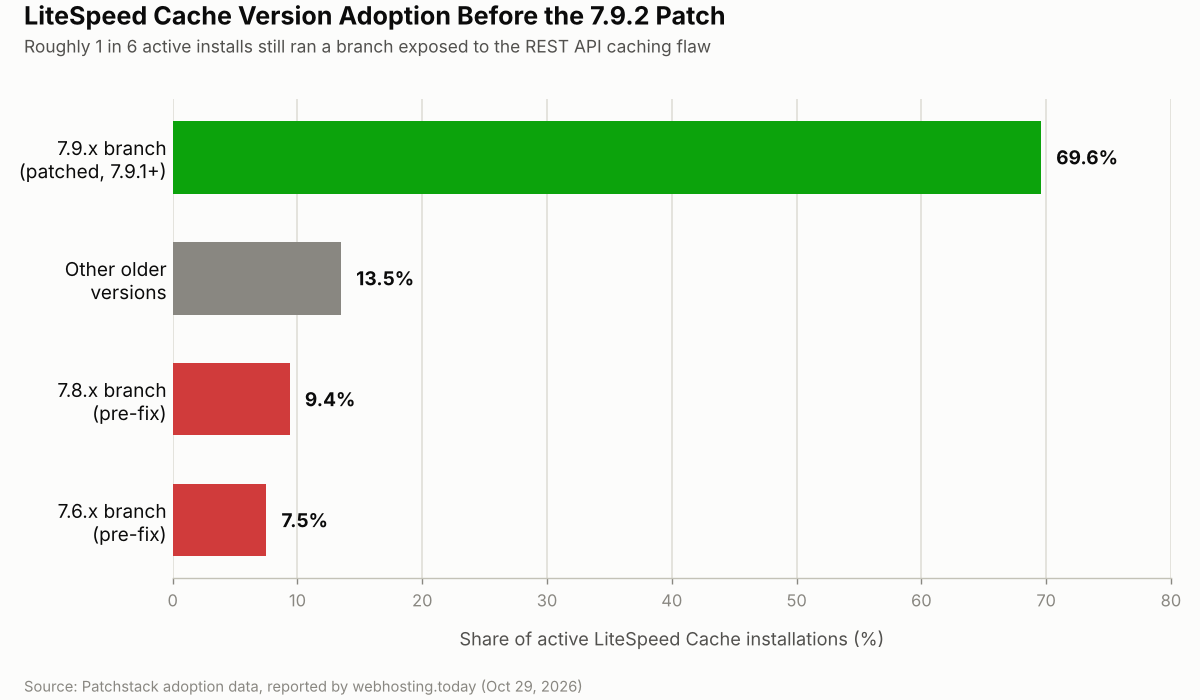
About 69.6% of active installs sit on the 7.9.x branch, which includes both patched and unpatched builds within that line. Roughly 9.39% still run the 7.8.x branch and 7.51% run 7.6.x, both of which predate the fixes entirely. That is close to 1.2 million installations on branches that need to update LiteSpeed Cache immediately, not just when convenient.
The remaining 13.5% covers older branches that webhosting.today’s source did not break out individually. None of those figures confirm how many sites meet the three specific conditions that make the flaw exploitable. They do show that a meaningful share of the install base has not moved past a vulnerable version, months after the fix shipped.
Frequently Asked Questions
Do I need to update LiteSpeed Cache if my site is small and low traffic?
Yes. The vulnerability does not depend on traffic volume. It depends on your permalink structure, your REST API caching setting, and whether anything connects without a cookie. A small site with an application-password-based backup tool is just as exposed as a large one.
Will updating LiteSpeed Cache break my site?
Usually not, but any plugin update carries some risk, especially on a heavily customized setup. Back up first, update on a staging copy if you have one, and check your site’s front end after the update completes.
How do I know if my site was actually affected?
There is no built-in log that confirms exploitation after the fact. If you met all three conditions before patching, the safest move is to update, purge cache manually, and rotate any application passwords tied to REST integrations.
Does changing my permalink structure alone fix this?
It removes one of the three required conditions, which helps, but updating to 7.9.2 is still the direct fix. Permalink changes can also affect existing SEO redirects, so test them carefully before applying site-wide.
Where can I check what version I am currently running?
Go to Plugins > Installed Plugins in your WordPress dashboard. LiteSpeed Cache lists its version number directly under the plugin name, or run wp plugin list through WP-CLI if you manage the site from the command line.
Add LiteSpeed Cache Updates to Your Maintenance Checklist
The pattern here is familiar. A plugin with millions of installs gets a quiet fix, the advisory comes out weeks later, and a chunk of the install base stays on an older version long after that. The work to update LiteSpeed Cache itself takes minutes. The gap between fix and adoption is what causes the risk.
If plugin updates currently happen whenever someone remembers to check, this is a good prompt to put them on a schedule instead. Pair a monthly pass to update LiteSpeed Cache and your other plugins with routine checks like a database cleanup and a look at your Core Web Vitals. Caching plugins sit at the center of both performance and security on a WordPress site. The same backup-first habit applies whenever you update WordPress core, not just a plugin.
For now, the action is simple: update LiteSpeed Cache to 7.9.2 or later, purge cache manually if you were running an older version, and keep an eye on application passwords tied to anything that talks to your site without a browser cookie.




Leave a response