

If you have ever connected ChatGPT, Claude, a mobile app, or a plugin like Jetpack to your WordPress site, you have probably used WordPress application passwords without fully realizing what they can do. They are the quiet credential layer behind almost every modern WordPress integration, and getting them wrong can hand a stranger full control of your site.
This guide walks you through exactly what WordPress application passwords are, why they matter more than ever now that AI tools routinely connect to WordPress sites, and the seven concrete steps you should take to create, limit, and manage them safely on your own site.
What Are WordPress Application Passwords?
WordPress application passwords are separate, auto-generated credentials tied to a specific user account. Instead of typing your real login password into a third-party app, you generate a one-time code that app uses instead. The feature has shipped in WordPress core since version 5.6, so it is available on virtually every modern site, including this one.
Each one is shown to you exactly once, at the moment you create it, then stored on the server only as a hash. Apps typically send it using HTTP Basic Authentication against the WordPress REST API, which is the same API that powers the block editor, mobile apps, and most AI integrations.
Critically, it inherits the full role and capabilities of the user who created it. If an administrator generates one, that credential can create posts, install plugins, add users, and change site settings, exactly like logging in as that administrator would.
Why WordPress Application Passwords Matter More Right Now
This feature used to be a niche option for developers connecting a mobile app or a custom script. That has changed. AI assistants, no-code automation tools, and content pipelines now routinely ask site owners to paste in a credential to “connect” and start reading or writing content automatically.
That convenience comes with a real trade-off. A password pasted into the wrong chat window, saved in an unencrypted notes file, or logged by a browser extension can give an outside tool the same reach as your most trusted administrator account. Unlike a stolen login password, many people never think to rotate these credentials at all.
WordPress itself is leaning further into this space. The core project has openly stated a 2026 goal of “embedding AI across WordPress,” and the official roadmap lists version 7.2 for a planned December 2026 release, with contributors actively discussing ways to make credential handling safer. That makes this the right moment to get your own hygiene in order, rather than waiting for a problem to force the issue.
Step 1: Understand What One Can Actually Do
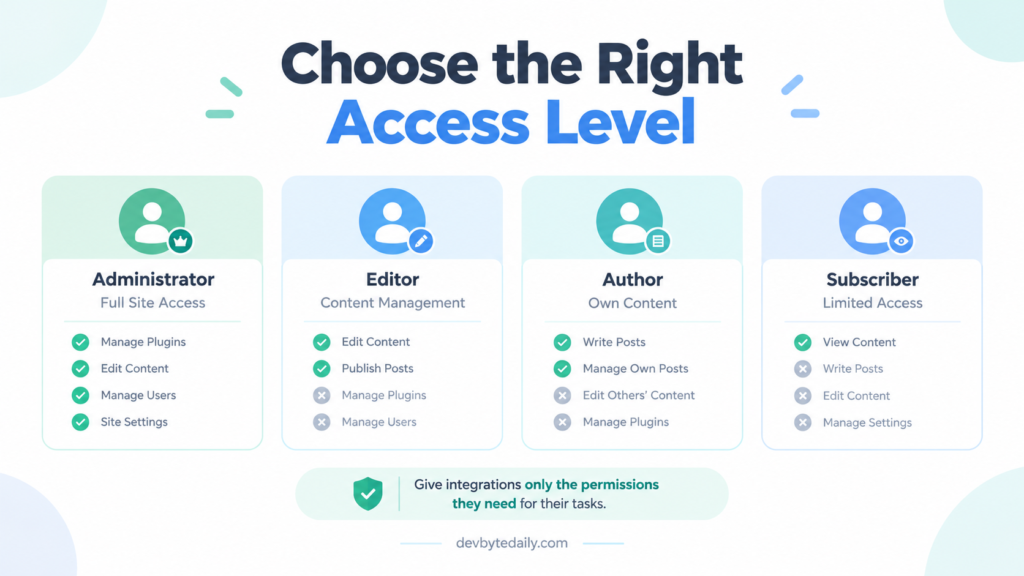
Before creating or revoking anything, confirm exactly what role the credential you are working with belongs to. Log in to Users > All Users and check the role of the account you plan to use for any new integration.
An Administrator-level credential can do anything the admin dashboard allows: publish or delete content, switch themes, activate plugins, add or remove users, and read every draft and private page. An Editor-level one is narrower, limited mostly to content. A Subscriber-level one can do very little beyond reading its own profile data.
Write this down before you go further. The role of the account is the single biggest factor in how much damage a leaked WordPress application password could cause, and it is the first thing to change if you currently use an admin account for everything.
Step 2: Audit Every Credential Already on Your Site
Most site owners have more of these sitting around than they expect, left over from a plugin test, an old mobile app login, or a one-time script. Start by listing what already exists.
- Go to Users > Profile for your own account and scroll to the Application Passwords section to see everything tied to you.
- Repeat this for every other administrator and editor account on the site, since each user manages their own list separately.
- For each entry, check the name and the “Last Used” date. One with no recent activity is a candidate for removal.
- If you manage the server, a developer can also run
wp user list-application-passwordsthrough WP-CLI for a full site-wide view.
This audit step alone often surfaces forgotten access. If your site was previously affected by a core vulnerability, such as the issue described in our WordPress 7.1 update problems coverage, treat every credential created before the fix as suspect and rotate it.
Step 3: Create a Dedicated, Limited-Privilege User for Each Integration
The single most effective habit here is refusing to use your main administrator login for app connections at all. Instead, create a separate WordPress user whose only job is representing that one integration.
For a content tool that only needs to draft posts, create a user with the Author or Contributor role. For an analytics plugin that only reads data, a Subscriber or custom read-only role is usually enough. Give the account a clear name, such as “ai-content-assistant” or “zapier-integration,” so its purpose is obvious months later.
This single step limits the blast radius of almost every other mistake you could make. Even if the credential eventually leaks, the attacker inherits a narrow role instead of full administrator control of your WordPress site.
Step 4: Generate a Unique Password for Each App
Never reuse one WordPress application password across multiple tools, even if they belong to the same user. Each integration should get its own, clearly labeled credential.
- Log in as the dedicated user you created in Step 3, or open that user’s profile if you have administrator access.
- Scroll to the Application Passwords section near the bottom of the profile page.
- Enter a descriptive name in the “New Application Password Name” field, such as the exact app or service it is for.
- Click Add New Application Password. WordPress displays the generated password exactly once.
- Copy it immediately into the app’s connection settings. If you navigate away before copying it, you will have to generate a new one.
According to the official WordPress developer documentation, these credentials cannot be used to log into the normal wp-admin login form, so they do not replace your main account security. They only authenticate API requests from the specific app you generated them for.
Step 5: Restrict What Each One Can Do
Out of the box, WordPress core does not let you limit a credential to specific actions; it simply inherits the user’s full role. If you want finer control, a dedicated capability-management plugin closes that gap.
Plugins built for this purpose let you attach rules to individual entries, such as allowing an AI writing tool to create drafts but blocking it from publishing, hiding other post types, or preventing any plugin or theme changes through that credential. This lets a human still review AI-generated drafts before anything goes live.
If you are not ready to add another plugin, the low-tech version of this step is simply choosing the lowest WordPress role that still lets the integration function, as covered in Step 3. Least privilege is the goal either way.
Step 6: Store and Transmit Them Securely
A WordPress application password is a secret, and it should be treated with the same care as a database credential or an API key, not pasted into a group chat or a shared spreadsheet.
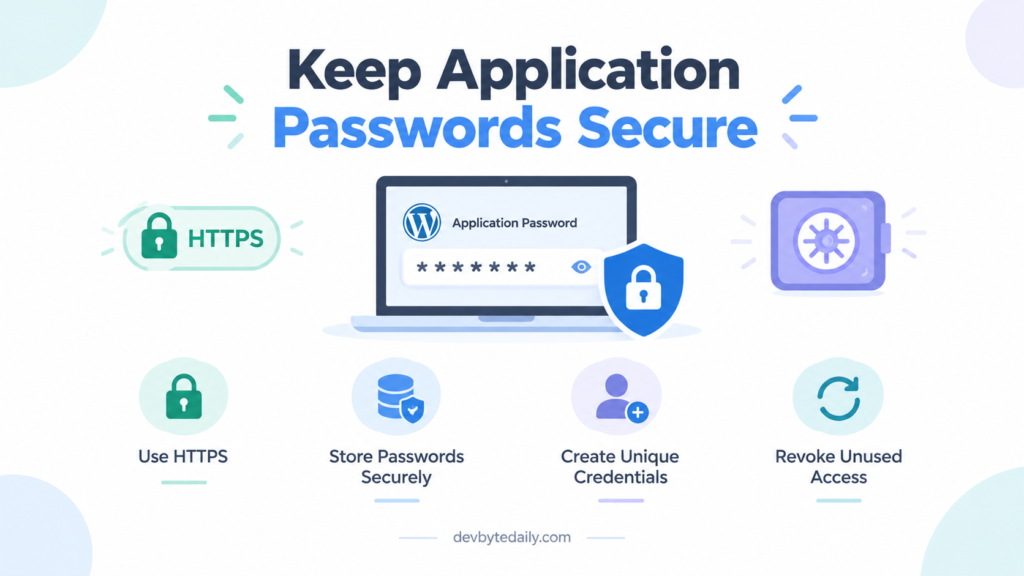
Always confirm the site is served over HTTPS before connecting any app, since Basic Authentication credentials can be intercepted on an unencrypted connection. Store the password in a password manager or the app’s own encrypted settings field, never in a plain text file or an email thread.
Be especially careful with AI chat tools. Typing a live credential directly into a chat prompt can leave it sitting in that provider’s logs or conversation history long after you meant to delete it. Where possible, use an official plugin or connector’s dedicated password field instead of pasting the credential into free-form text.
Step 7: Monitor, Rotate, and Revoke Old Credentials
Creating a safe WordPress application password is only half the job. Treat every credential as temporary and plan to check on it.
- Set a recurring reminder, such as quarterly, to revisit Users > Profile and review the Application Passwords list for each account.
- Revoke anything you no longer recognize or no longer use by clicking “Revoke” next to that entry. This disables only that one credential, leaving the user’s main login and other integrations untouched.
- Rotate a password immediately if you stop using a tool, change agencies or contractors, or suspect any device that had access may have been compromised.
- If your site also had core files affected by a past security release, cross-check the timeline against posts like our WordPress 7.1.3 update rundown to see whether that window overlaps with when the credential was issued.
Rotating these credentials costs a few minutes. Discovering months later that a long-forgotten integration still has full access to your site costs considerably more.
What’s Coming Next for This Security Feature
WordPress contributors are actively discussing further improvements to this exact workflow. Two enhancement tickets on the core issue tracker propose sending site owners an email whenever a new application password is created, and changing how the authorization screen hands a freshly generated credential back to an app so it never appears in a browser URL or server log.
Neither proposal has a confirmed release milestone yet; both are still marked “Awaiting Review” as of this writing, so do not assume your site already behaves this way. The broader WordPress 7.2 release is targeted for around December 2026 on the official roadmap, with a feature freeze roughly a month earlier, but the roadmap itself does not yet guarantee which credential-handling changes will land in that specific version.
The practical takeaway is simple: do not wait for core to add safety nets. The seven steps above work today, regardless of which version of WordPress you are running, including the 7.1.x line most sites are currently on, as covered in our overview of WordPress 7.1’s new features.
Treating each WordPress application password as its own limited key, rather than one shared master key, is the core idea behind every step in this guide.
Frequently Asked Questions
Are WordPress application passwords the same as my login password?
No. Your login password works on the wp-admin login screen and can be used with two-factor authentication. A credential like this only works for API requests from the specific app it was generated for, and it cannot be used to sign in through the normal login form.
Can I turn off this feature entirely?
Yes. A developer can disable it site-wide with the wp_is_application_passwords_available filter, or restrict it for specific users and roles with wp_is_application_passwords_available_for_user, both documented in the official WordPress developer handbook.
What should I do if I think a credential leaked?
Revoke that specific entry immediately from the user’s profile, then check recent posts, users, and plugin activity for anything unexpected. Afterward, generate a fresh one under a lower-privilege account if the integration still needs access.
Do WordPress application passwords work with every plugin?
They work with anything that authenticates through the WordPress REST API using HTTP Basic Authentication, which covers most modern integrations, mobile apps, and AI connectors. Older plugins built only around XML-RPC may behave differently.



Leave a response