

Marketing teams keep adding tracking without ever removing anything. A GA4 property that launched three years ago still carries old UTM habits, half-configured key events, and an attribution setting nobody remembers choosing. The result is a dashboard that looks fine until a number needs to hold up in a budget meeting.
A GA4 reporting audit checklist fixes that by forcing a line-by-line check of the settings that quietly change what your numbers mean. This guide walks through twelve checks, covering attribution, tracking hygiene, data settings, and the Looker Studio dashboards built on top of GA4. Run through them in order. You will know exactly which numbers in your reports you can trust, and which ones need a second look before anyone presents them.
Why a GA4 Reporting Audit Checklist Matters Now
Google retired four rules-based attribution models, first click, linear, time decay, and position-based, in November 2023, according to Google’s own support documentation on key events attribution. Any property still referencing those models in old reports or saved explorations is showing numbers that no longer map to a live setting.
At the same time, Looker Studio has not stood still. Google’s official Looker Studio release notes list a BigQuery Graph connector added October 22, 2026, plus bulk styling and new partner connectors on September 24. Fullscreen charts, rotate components, and a copy-chart-as-image option followed on August 13. Dashboards built before any of those updates can drift out of sync with what the underlying data sources now support.
None of that shows up as an error message. It shows up as a scorecard that quietly stops matching reality. A scheduled GA4 reporting audit catches it before a stakeholder does.
This matters more for solo practitioners and small teams than for large analytics departments. A big company often has a dedicated analyst watching for exactly this kind of drift. A solo marketer or a two-person team usually does not. That means a GA4 reporting audit has to be scheduled on purpose, instead of happening by accident through someone else’s routine.
The 12-Point GA4 Reporting Audit Checklist
Work through these checks in order. Each one takes a few minutes in the GA4 interface or Looker Studio, and together they cover the places where marketing analytics setups tend to rot first.
1. Confirm Which Attribution Model Each Report Is Actually Using
Go to Admin, then Data display, then Events, then Key events attribution. Google’s documentation confirms that paid and organic channels can use data-driven attribution, which it recommends, or last click. Google paid channels use last click instead, with a fallback to paid and organic last click. Check that the model selected matches what your team assumes it is, because the setting applies to historical and future data the moment you change it.
Write the current setting down somewhere outside GA4, a shared doc or a wiki page works fine. That way, the next person who pulls a report won’t have to guess whether a sudden jump in assisted conversions is real, or just someone changing this setting last quarter.
2. Audit Key Events for Duplicates and Dead Events
List every event currently marked as a key event. Properties that migrated from Universal Analytics often carry duplicate purchase events, or key events tied to a form that was removed from the site months ago. A key event with zero recent volume is not a tracking bug, it is a sign nobody has reviewed the list in a while.
Pay particular attention to any event marked as a key event in more than one way. A purchase event firing from both a server-side tag and a client-side pixel is a common example. That double count inflates conversion totals without ever throwing an error.
3. Verify Google Ads and Search Console Links Are Still Live
Linked properties can silently disconnect after an account change, a lost permission, or a Google Ads account restructure. If cost data or Search Console queries have gone missing from a report, this is usually the first place to look, not the dashboard itself.
Open Admin, then Product links, and confirm each linked account shows an active status rather than a warning icon. A link that lost permission does not always notify anyone, it just stops passing data forward.
4. Check UTM Parameters Are Consistent Across Every Channel
Inconsistent casing, missing utm_medium values, or a campaign tagged “Email” in one tool and “email” in another will split what should be one channel into several rows. This gets worse when AI platforms are involved. DevByteDaily covered how ChatGPT’s UTM tracking bug stripped parameters from outbound links after a model update. It’s a reminder that UTM hygiene now depends on tools you don’t control.
Pull the Default channel group report and scan for channels that look like they should be one but are listed separately. A naming mismatch between two campaigns is usually easier to find there than by reading raw UTM strings one by one.
5. Review Internal Traffic and Referral Exclusion Filters
Staff visits, QA sessions, and payment processors that redirect through a third-party domain can all inflate session counts or misattribute conversions. Confirm the internal traffic rule still matches your office and remote IP ranges, and that referral exclusions cover every payment or booking domain your checkout flow touches.
Remote work makes the IP-based version of this filter less reliable than it used to be. If most of the team works from home on changing IP addresses, a browser-based internal traffic parameter set through Tag Manager tends to hold up better over time.
6. Confirm Cross-Domain Tracking If You Run Multiple Domains
If a purchase flow hands off from a marketing site to a separate checkout domain, cross-domain tracking has to be configured in the data stream settings, not assumed. Without it, that handoff looks like a new session with a self-referral, and conversion rate reporting on the marketing site understates what actually happened.
Test it by completing a full purchase yourself and checking that the client ID stays the same across both domains in DebugView. If it changes partway through, the handoff is still broken no matter what the configuration screen says.
7. Check Your Data Retention Setting Against Your Exploration Reports
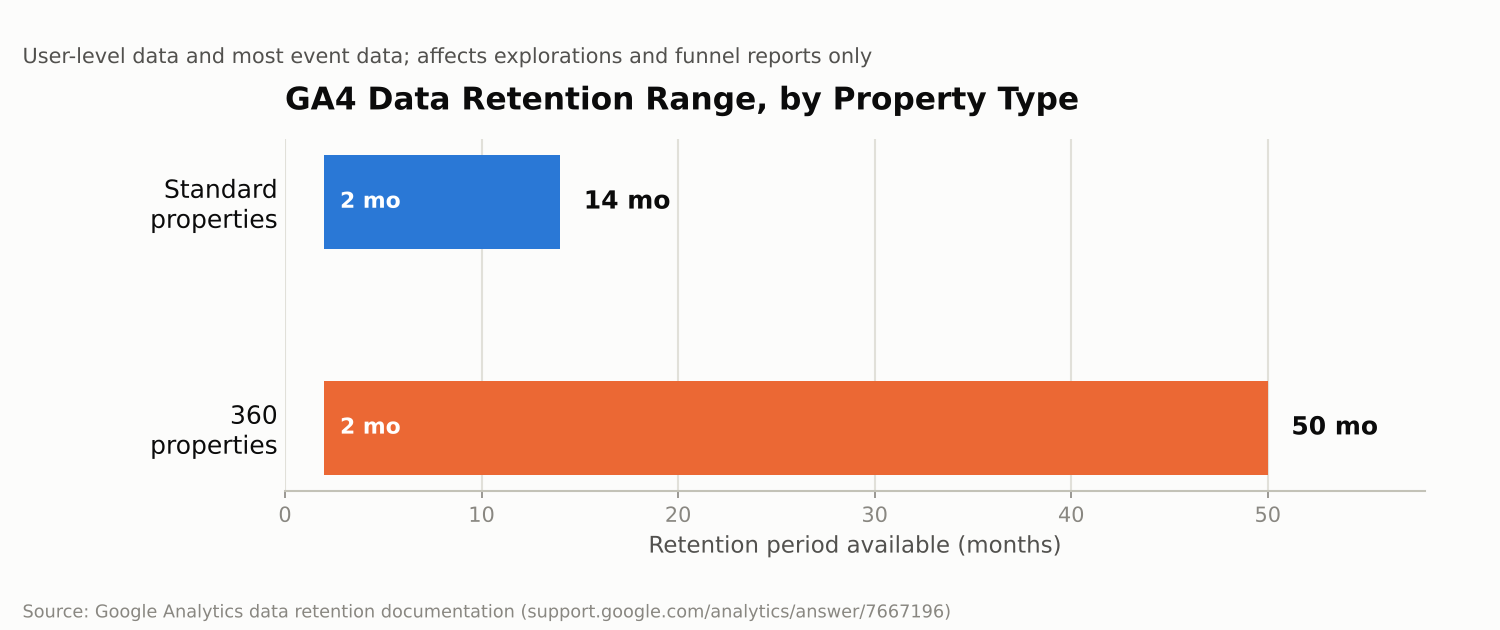
Per Google’s data retention documentation, standard GA4 properties can set user-level data and most event data to 2 or 14 months. 360 properties can extend further, to 26, 38, or 50 months. That setting only affects explorations and funnel reports, not standard aggregated reports. If a quarterly cohort exploration looks thin, this is usually why.
8. Verify Consent Mode Status for Regulated Traffic
Any property serving EU, UK, or other regulated traffic needs a working consent mode implementation. Spot-check a session from a region with strict consent requirements. Confirm the consent state is actually being passed, rather than assuming a tag manager template is doing it correctly.
Google’s modeling fills gaps left by denied consent, which is useful. It is not a substitute, though, for checking that the banner itself still loads on every template, including pages added after the consent setup was first built.
9. Refresh Your Looker Studio Data Sources and Check for New Fields
Open each GA4 and connector data source in Looker Studio and refresh fields rather than assuming nothing changed. With Google adding new connector fields and partner connectors through 2026, a data source that was last refreshed months ago may already be missing fields other reports are using.
Check each chart type against the current editor too. Google’s release notes describe modernized timeline charts and expanded bar chart conditional formatting added in late 2025. A chart built before those updates may still be using an older style, even though a newer one is now available for the same data.
10. Match Every Dashboard Metric to an Actual Decision
For every scorecard on the dashboard, ask what decision it informs. A metric nobody acts on is a vanity number taking up space that a more useful one could fill. This is the same discipline DevByteDaily applied in a CRO audit for AI traffic: strip out what doesn’t drive a decision before adding anything new.
A fast way to test this: cover the metric with your hand and ask whether anyone would notice it was missing for a month. If the honest answer is no, it is a candidate for removal, not for a better chart type.
11. Align Timezone and Currency Across Blended Data Sources
A dashboard that blends GA4 with Google Ads, Meta, or a CRM export can silently mismatch. One source might report in UTC while another uses the account’s local timezone, or currency conversion happens in one tool but not another. This is especially easy to miss after DevByteDaily’s look at Meta Pixel on-device conversions, where conversion timing and attribution windows already differ from GA4’s by design.
Build this check into the blended data source itself, rather than trusting individual chart filters. A timezone mismatch set at the data source level will quietly affect every chart pulled from it.
12. Confirm Who Actually Reviews the Dashboard, and How Often
A dashboard nobody opens is the clearest sign an audit is overdue. Name the person responsible for each report, and set a review cadence. In my experience, weekly works for paid channels and monthly for organic and brand. Retire any report that has not been opened in that window.
If you use Looker Studio’s own view history or a shared comment thread to confirm who looked at a report last, use it. A dashboard that exists only because it once seemed like a good idea is a maintenance cost with no return.
Common Mistakes That Undermine a GA4 Reporting Audit
A few habits turn a GA4 reporting audit into a one-time exercise instead of a repeatable one.
- Treating the audit as a one-off project. Settings drift continuously as campaigns launch and platforms update, so a single pass loses value within a quarter.
- Auditing the dashboard without touching the data source. A clean-looking Looker Studio report can still be built on a GA4 configuration that quietly changed underneath it.
- Fixing a setting without documenting why. The next person to touch the property needs to know the attribution model or retention setting was a deliberate choice, not an accident waiting to be reverted.
- Skipping the audit after a migration. Account restructures, domain changes, and CMS migrations are exactly when links break and filters stop matching.
What Changed in GA4 Attribution Since 2023
The table below summarizes the state of GA4 attribution models today, based on Google’s current documentation, against what was available before the November 2023 change.
| Attribution Model | Status Before Nov 2023 | Status Today |
|---|---|---|
| Data-driven (paid and organic) | Available, optional | Available, recommended default |
| Last click (paid and organic) | Available | Available |
| First click | Available | Retired |
| Linear | Available | Retired |
| Time decay | Available | Retired |
| Position-based | Available | Retired |
| Google paid channels last click | Available | Available |
If a saved report, dashboard note, or client-facing deck still references first click, linear, time decay, or position-based attribution, that reference is describing a model that no longer exists. It’s worth updating before a client asks about it.
GA4 Data Retention by Property Type
The chart below shows the retention period options Google documents for user-level data and most event data, which only affect explorations and funnel reports, not standard reports.
Frequently Asked Questions
Does changing the attribution model in GA4 affect past reports?
Yes. Google’s documentation states that changing the reporting attribution model applies to historical and future data, so comparisons to reports run under the old setting won’t match.
How often should a GA4 reporting audit checklist actually be run?
Quarterly is a reasonable baseline for most teams. In my experience, running it right after a major account restructure, a new domain launch, or a platform update catches more issues than a fixed calendar alone. Looker Studio shipped several such updates through 2026.
Does the GA4 data retention setting delete my historical reports?
No. It only limits how far back explorations and funnel reports can query. Standard reports with primary and secondary dimensions are unaffected, according to Google’s data retention documentation.
Is data-driven attribution the same as last click?
No. Data-driven attribution splits credit for a key event across multiple touchpoints, using your property’s own data. The result is often fractional values that sum to 1.0. Last click, by contrast, assigns all credit to the final touchpoint before conversion.
Where This Leaves Your Reporting
None of these twelve checks require new tooling. They require someone to actually open the settings panels and compare what is configured against what the team assumes is configured. That gap, between assumption and configuration, is where most marketing analytics reporting quietly goes wrong.
Put a recurring date on the calendar and work through the checklist in order. Fix what’s broken before the next report goes out, not after someone questions it in a meeting. A GA4 reporting audit checklist is only useful if it actually gets run.




Leave a response