

The WordPress 7.1.3 update is a maintenance and security release that WordPress.org published on October 6, 2026, patching seven security issues and four bugs in WordPress core. If you run a self-hosted WordPress site, the short version of the WordPress 7.1.3 update is this: back up your site, confirm you are running an older version, apply the update through your dashboard or hosting panel, then verify your pages, forms, and admin area still work. The rest of this guide walks through each step in detail, including what could go wrong and how to recover if it does.
What the WordPress 7.1.3 Update Actually Fixes
Before you touch your dashboard, it helps to know what you are installing. A maintenance and security release is a point update (the number after the second dot, like the “.3” in 7.1.3) that WordPress core ships outside the normal major-release cycle specifically to patch bugs and vulnerabilities. It does not add new features, and in most cases it does not change how your site looks or behaves.
According to the official WordPress.org documentation page for this release, WordPress 7.1.3 addresses seven confirmed security issues, including a stored cross-site scripting (XSS) flaw on the Comments administration screen, a denial-of-service weakness in how WordPress resolves absolute URLs, a second-order SQL injection issue in the WXR export tool, and an unauthenticated information disclosure bug that could let outsiders view comments on private or unpublished posts. It also fixes an issue that let Author-level users mark posts as sticky without proper permission, an XSS vulnerability tied to Imgur embeds, and a flaw where forgeable parameters passed to the “{status}_{type}” hook could cause action name collisions.
On top of the security patches, the release includes four general bug fixes. WordPress.org has not published individual Trac ticket numbers for every item on the public documentation page, so treat the component list (files like class-wp-http.php, export.php, and class-wp-query.php) as a reliable indicator of what changed, rather than a full line-by-line changelog.
This is worth separating clearly: everything in the paragraphs above is a confirmed fact from WordPress’s own release documentation. Everything from here forward, about how to apply the update and what tends to go wrong, is practical advice based on how WordPress updates typically behave, not an official WordPress.org statement.
Step 1: Back Up Your Site Before the WordPress 7.1.3 Update
Every update guide says this, and it is still the step people skip most often. Before you start the WordPress 7.1.3 update, take a full backup that includes your database and your files (themes, plugins, and the uploads folder).
If your host offers one-click backups or snapshots (most managed WordPress hosts do), use that first. It is the fastest way to get a restore point you can trust. If not, a backup plugin that stores copies off-site, on a service like Google Drive, Dropbox, or Amazon S3, is a reasonable second option.
- Confirm the backup actually finished and that the file size looks reasonable, not empty or near-zero.
- Note the exact date and time of the backup so you know which restore point to use if something breaks.
- If you can, download a copy of the backup to your own computer instead of relying solely on the host’s storage.
This single step is what turns a bad update into a ten-minute inconvenience instead of a lost afternoon.
Step 2: Check Your Current WordPress Version
Next, confirm what version you are actually running. Log into your WordPress dashboard and go to Dashboard > Updates, or check the version number in the bottom-right corner of most admin screens.
If your site is already on WordPress 7.1.2 (released September 22, 2026) or 7.1.1 (released September 17, 2026), you are specifically exposed to the issues this release fixes, since 7.1.3 is the most recent point release in the 7.1 branch. Readers who followed DevByteDaily’s earlier coverage of the WordPress 7.1.2 security update or the WordPress 7.1 update problems after 7.1.2 are exactly the audience this new release is meant for.
If you are on an older branch entirely (7.0.x, for example), WordPress.org notes that fixes are being backported to older affected branches, but only the current version receives full, ongoing support. Practically, that means the safest long-term position is to be on the latest 7.1.x release rather than relying on a backport indefinitely.
Why the WordPress 7.1.3 Update Matters Even If Your Site “Seems Fine”
Several of the issues this release fixes are not the kind of bug you would notice from normal day-to-day use. Information disclosure and SQL injection vulnerabilities can sit quietly for months before anyone notices unusual traffic or missing data. Updating is not a reaction to visible symptoms; it is closing doors before someone finds them.
Step 3: Decide How You Will Apply the Update
WordPress gives you three realistic paths to install a point release like this one. Pick the one that matches your comfort level and your hosting setup.
Option A: Automatic Background Updates
WordPress core has shipped automatic background updates for minor and security releases since version 3.7, and most sites have this enabled by default. If automatic updates are working on your install, you may already be on WordPress 7.1.3 without doing anything. Check Dashboard > Updates to confirm.
Option B: One-Click Update From the Dashboard
If automatic updates are disabled, or you simply prefer to control the timing, go to Dashboard > Updates in wp-admin. If a newer version is available, you will see an “Update Now” button. Click it, wait for the process to finish, and avoid closing the browser tab or navigating away mid-update.
Option C: Manual Update or WP-CLI
Developers and agencies managing multiple sites often prefer a manual process. You can download the latest WordPress package from WordPress.org and replace the wp-admin and wp-includes folders (never your wp-content folder, which holds your themes, plugins, and uploads) via SFTP, or run a single command if WP-CLI is installed on your server:
wp core updateto install the latest core versionwp core versionto confirm the update applied correctlywp plugin list --update=availableto see which plugins might need attention next
Step 4: Test on Staging First If You Can
If your host provides a staging environment (a copy of your site used for testing changes before they go live), use it. Clone your production site to staging, apply the WordPress 7.1.3 update there first, and click through your most important pages, forms, and checkout flow if you run an online store. Treating the WordPress 7.1.3 update like any other code deploy, rather than a one-click afterthought, is what separates a quiet Tuesday from a weekend fire drill.
This step is optional for a small personal blog running a handful of well-maintained plugins. It becomes much more important for business-critical sites, membership sites, or anything running custom code, a heavily modified theme, or plugins that have not been updated recently. Plugin conflicts, not WordPress core itself, are the most common cause of update-related breakage.
Step 5: Apply the WordPress 7.1.3 Update
With a backup in hand and, ideally, a successful staging test behind you, apply the update to your live site using whichever option from Step 3 fits your setup. For most site owners, that means logging into wp-admin, going to Dashboard > Updates, and clicking Update Now.
The update process typically takes under a minute. WordPress will briefly put your site into maintenance mode, replace the core files, run any necessary database upgrade routines, and then bring the site back online. You do not need to manually run a database update for a point release like this one; WordPress handles that automatically if it is required.
Step 6: Verify Your Site After the Update
Once the WordPress 7.1.3 update finishes, do not assume success just because no error appeared on screen. Spend five minutes checking the things that matter most.
- Confirm the version number under Dashboard > Updates now reads 7.1.3.
- Load your homepage, a blog post, and any key landing pages in a private browser window.
- Test your comment form, contact form, and, if applicable, your checkout or login flow.
- Check Plugins > Installed Plugins for any plugin flagged as deactivated or incompatible.
- Look at your site speed and Core Web Vitals; an update should not meaningfully change load time, but if your Time to First Byte climbs after an update, it is worth investigating whether caching needs to be cleared.
If you use a page caching plugin or a CDN, clear the cache after updating. A stale cache is one of the most common reasons an update “didn’t seem to do anything,” because visitors are still being served the pre-update version of a page.
Step 7: Monitor and Harden Going Forward
Updating is not a one-time event. After applying the WordPress 7.1.3 update, take a few minutes to reduce the odds of repeating this scramble next time.
- Turn on automatic background updates for minor and security releases if they are not already enabled, so point releases like this one install without manual intervention.
- Keep plugins and your theme updated on a regular schedule rather than letting them lag for months.
- Subscribe to the WordPress.org release feed or a reputable WordPress news source so you hear about security releases within a day or two, not weeks later.
- If you manage a child theme (a theme that inherits from a parent theme so your customizations survive theme updates), confirm it was not affected and still loads correctly.
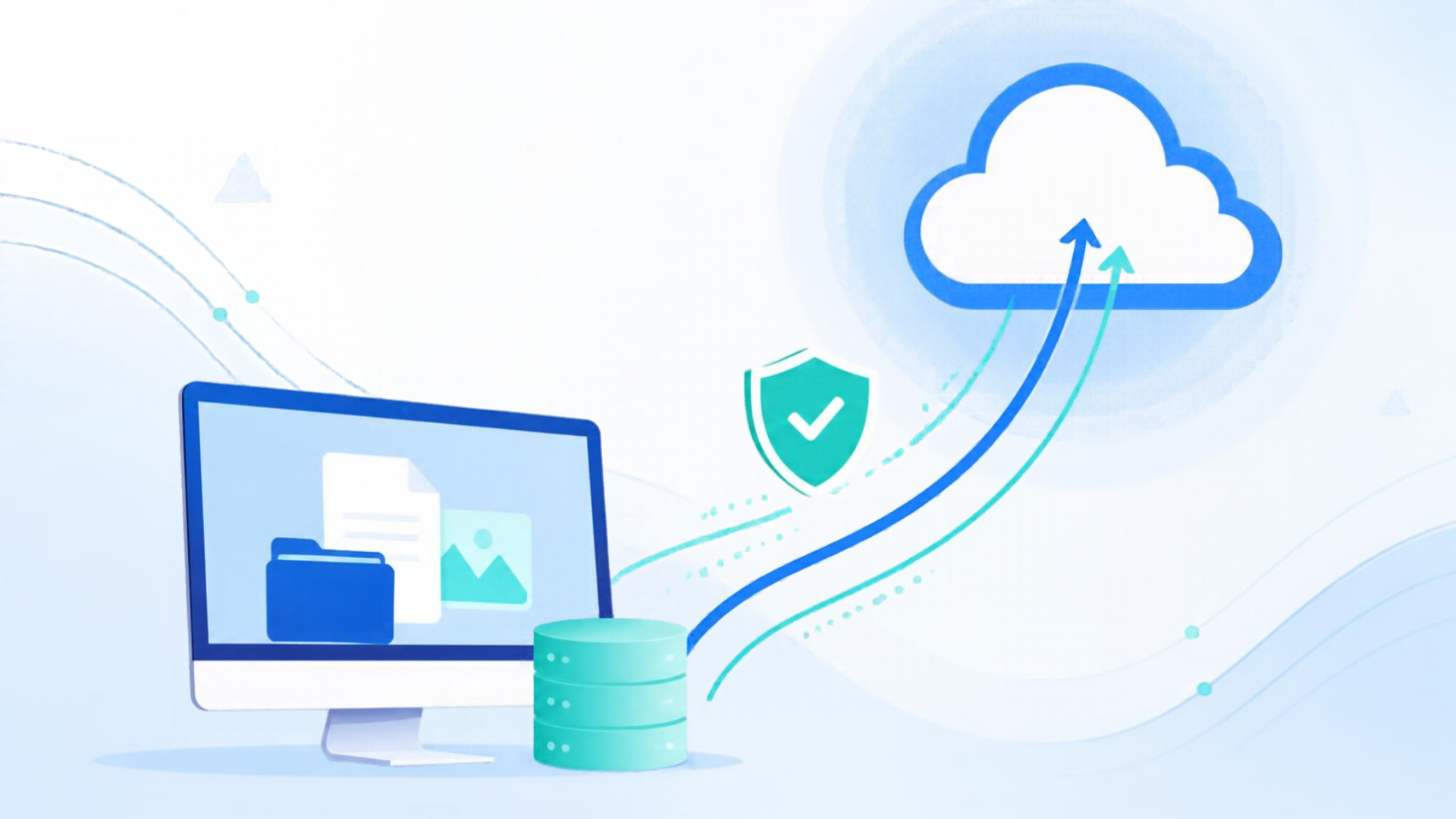
Taking a full backup before you start the WordPress 7.1.3 update gives you a safe restore point if anything goes wrong.
Troubleshooting: What Could Go Wrong and How to Recover
Most WordPress 7.1.3 update installs finish without incident, since this is a small, targeted release rather than a major version jump. Still, it is worth knowing the common failure modes of a WordPress 7.1.3 update and the fix for each.
White Screen of Death After Updating
This is almost always caused by a plugin or theme conflict, not by WordPress core itself. Connect via SFTP or your host’s file manager, rename your plugins folder temporarily (WordPress will deactivate everything automatically), and reload the site. If it comes back, rename the folder back and reactivate plugins one at a time to find the culprit.
“Briefly Unavailable for Scheduled Maintenance” Message That Won’t Go Away
If the update process is interrupted, WordPress can get stuck in maintenance mode. Connect via SFTP and delete the file named .maintenance from your site’s root directory. This is safe to do once you are confident the update itself completed.
A Specific Plugin Stops Working
Check the plugin developer’s support forum or changelog for a note about compatibility with the current WordPress version. Most actively maintained plugins release a compatibility update within a few days of a WordPress core release. If no fix exists yet, consider temporarily switching to a well-supported alternative plugin.
You Need to Roll Back
If something breaks that you cannot quickly resolve, restore the backup you took in Step 1. This is exactly why that step is not optional. Rolling back buys you time to investigate the conflict calmly rather than troubleshooting a live, broken site under pressure.
Frequently Asked Questions About the WordPress 7.1.3 Update
Is the WordPress 7.1.3 update mandatory? It is not technically mandatory in the sense that WordPress will not force it on you if automatic updates are disabled, but it is strongly recommended. Several of the patched issues are security vulnerabilities that could expose private content or allow unauthorized actions on your site.
Will the WordPress 7.1.3 update break my plugins or theme? It is possible but unlikely for a well-maintained site. Because this is a maintenance and security release rather than a major version, it does not change core APIs in ways that typically break plugins. Testing on staging first is still the safer path for business-critical sites.
How long does the WordPress 7.1.3 update take to install? For most sites, the actual core file replacement and any database routines finish in well under a minute. The parts that take longer are your own preparation: backing up, and verifying everything afterward.
Do I need to update my plugins and themes at the same time? Not necessarily in the same session, but you should not leave them far behind. Outdated plugins are a more common source of security incidents than outdated WordPress core, so keep them on a regular update schedule of their own.
What if my host already applied the WordPress 7.1.3 update automatically? Many managed WordPress hosts apply security releases on your behalf, sometimes within hours of release. Check Dashboard > Updates to confirm your version; if you are already on 7.1.3, you can skip straight to Step 6 and verify your site is working correctly.
Conclusion: What to Do Right Now
The WordPress 7.1.3 update patches seven confirmed security issues and four bug fixes, and it was published by WordPress.org on October 6, 2026. If you manage a self-hosted WordPress site, the single most useful action you can take today is to log into your dashboard, check whether you are already on version 7.1.3, and if not, back up your site and apply the update before the end of the day.
For the vast majority of sites, the WordPress 7.1.3 update is a small, low-risk install, and the security issues it closes are the kind that are worth not leaving open any longer than necessary.



Leave a response