

Google quietly turned on a new admin tool inside Google Analytics on November 6, 2026. It’s called Data Manager, and Google’s own release notes describe it as a unified hub for product links, data streams, and first-party data imports, all in one place. If you haven’t opened it yet, you’re not alone. Search Engine Roundtable reported it was still missing from several properties days after launch.
This GA4 Data Manager audit checklist exists because a new admin surface with this much reach, covering connections to Google Ads, Google Marketing Platform, and your own first-party data, deserves a close look before you trust what it’s telling you. Google itself has already flagged one real risk: setting up the same pipeline in two places can log conversions twice. That’s not a theoretical edge case. It’s a warning printed directly in Google’s own guidance.
The timing matters too. Google’s November 2026 core update started rolling out on November 10, giving every site owner a reason to compare before-and-after numbers over the next two weeks. A new data management layer showing up in the middle of that window is exactly the kind of change that can get blamed on the wrong thing if nobody checks it first.
What GA4 Data Manager Actually Is
Data Manager sits in the Google Analytics Admin area, under the “My preferences” tab in the left navigation. According to Google’s own release notes, it brings together four things that used to live in separate corners of the interface:
Product links, meaning your connections to Google Ads, Search Console, and Google Marketing Platform. Data streams, meaning the web, app, and server-side sources feeding your property. First-party data imports, meaning any customer data you upload directly. And connection health, meaning diagnostic alerts that flag when something in that chain breaks.
The headline feature is a data connection map, a visual trace of how data moves from its source, through your GA4 property, to whatever Google product receives it next. Paired with it is a data strength guide, which checks your setup against Google’s recommended measurement practices and flags gaps. Neither replaces the settings you already configured. They sit on top, making the whole chain visible in one screen instead of four.
If this sounds similar to Google’s August 2025 guidance on connecting AI assistant data or the May 2026 rollout of GA4’s native AI Assistant channel, it should. Google has spent the better part of 2026 consolidating scattered connection settings into fewer, more visual screens. Data Manager is the most ambitious version of that pattern yet, and it’s still in beta, which means some of what follows will change before it reaches general availability.
Before You Run the Checklist, Know What Changes and What Doesn’t
A few ground rules from Google’s own documentation are worth reading before you touch anything.
Data flows one direction. Information you connect through Data Manager flows down from Analytics to linked Google Ads and Google Marketing Platform accounts. It does not flow back up. If you’re expecting a GMP-side change to show up automatically in your GA4 property, it won’t, at least not through this interface.
Existing connections stay where they were built. If a product link was already set up directly inside Google Ads or GMP, Google says to keep managing it there. It continues running without duplicating inside Analytics. Data Manager is explicitly positioned for new connections going forward, not a forced migration of everything you already have running.
Subproperties and roll-up properties are left out, for now. Google’s beta rollout note states that the Data Manager landing page isn’t currently supported for subproperties or roll-up properties. If your organization relies on either structure, you’ll be auditing this at the standard property level only until that changes.
Rollout is uneven. Nearly two weeks after Google’s November 6 release, reports still describe uneven visibility, with some properties showing the new tab and others not. Checking for it is step one of the checklist for a reason: you can’t audit a feature you can’t see yet.
The GA4 Data Manager Audit Checklist
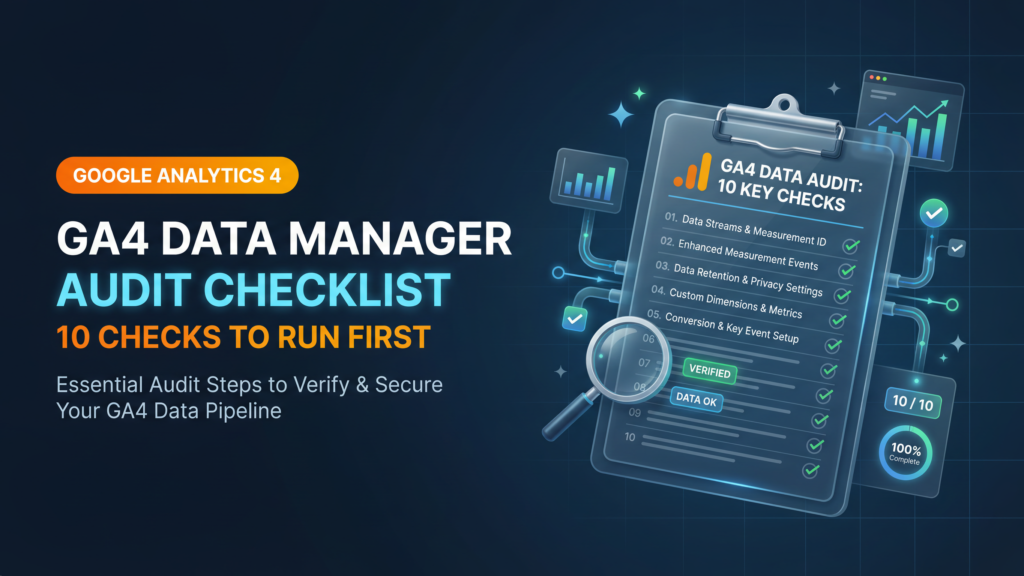
This GA4 Data Manager audit checklist runs through ten checks in order. None of them require new tooling, just access to your GA4 Admin settings and about thirty minutes.
1. Confirm Data Manager Has Actually Reached Your Property
Open Admin, then look under “My preferences” in the left navigation for a Data Manager tab. If it isn’t there, you’re not misconfigured, you simply haven’t been rolled in yet. Note the date you checked, and check again in a week rather than assuming it’s permanently absent. This beta is still expanding account by account.
2. Walk the Data Connection Map Before Changing Anything
Once you have access, open the data connection map first and change nothing. Trace each line from a data source through your property to whatever downstream product receives it. You’re looking for connections you don’t recognize, sources that should be flowing somewhere and aren’t, or destinations that look stale. This map is the fastest way to see your entire measurement setup at once, which is exactly why it’s worth reading carefully before editing it.
3. Check for Duplicate Pipelines Between Data Manager and Google Ads or GMP
This is the check Google itself is warning about. If the same conversion event, the same offline sale, or the same customer list is set up both inside Data Manager and inside Google Ads or GMP directly, it can get logged twice. That inflates conversion counts in a way that looks like good news until someone tries to tie it back to revenue.
Go through every active connection and ask one question: is this pipeline configured anywhere else, under any other product’s settings? If the answer is yes for even one connection, pick a single source of truth and disable the duplicate before you trust a single conversion number coming out of either tool.
4. Review Every Diagnostic Alert, Don’t Dismiss Them
Data Manager surfaces connection health through diagnostic alerts. Treat each one as something to investigate, not a badge to clear. A broken data stream, an expired permission, or a stalled import will show up here before it shows up as a mysterious gap in next month’s report. Reviewing this screen takes two minutes and can save you from presenting a dashboard built on a connection that quietly stopped working three weeks ago.
5. Read the Data Strength Guide’s Recommendations Against Your Actual Goals
The data strength guide will suggest measurement gaps to close. Some of those suggestions will genuinely matter for your business. Others will be generic best practice that doesn’t apply to how your site or app actually works. Read each recommendation and decide deliberately whether to act on it, rather than implementing everything the guide suggests by default. A recommendation engine built for every GA4 property on earth isn’t tuned to your specific reporting needs.
6. Verify First-Party Data Imports Are Still the Source of Truth
If you upload customer lists, offline conversions, or other first-party data, confirm those imports are still running through the channel you expect, now that Data Manager offers an alternative path for the same task. Check the timestamp of the last successful import and compare it against your usual upload schedule. A silent failure here is easy to miss because the rest of your reporting keeps running normally, just without the data you thought was included.
7. Decide Where New Connections Get Built Going Forward
Google’s guidance is direct: future connections should go through Data Manager in Google Analytics. Put that decision in writing for your team now, rather than letting the next person who needs a new product link default back to building it directly in Google Ads out of habit. A documented rule here is what prevents check 3 from becoming a recurring problem instead of a one-time fix.
8. Cross-Check Item Data and Third-Party Campaign Data Setup
Google’s own notes single out item data and third-party campaign data as types that must be set up directly in Data Manager, with no equivalent path elsewhere. If your ecommerce catalog or your campaign data from outside Google’s ecosystem isn’t flowing in through this specific route, it isn’t flowing in at all. Confirm these two categories by name rather than assuming they’re covered by whatever general data import you already have running.
9. Time Your Audit Around the November Core Update Window
Google’s November 2026 core update began rolling out on November 10 and can take up to two weeks to fully complete. Any ranking volatility you see in Search Console over that window is a separate story from anything Data Manager touches, but the two events landing close together makes it easy to blame a reporting gap on “the algorithm” when it’s actually a broken product link. Run this checklist now, while the core update is still settling, so you have a clean baseline for whichever explanation turns out to be right.
10. Document What You Changed, Not Just What You Checked
For every alert you resolved, every duplicate pipeline you disabled, and every recommendation you accepted or skipped, write down why. Beta features change their behavior as they mature, and the next person to open Data Manager, possibly you in three months, needs to know whether a setting was a deliberate choice or something left over from a feature that worked differently when you first found it.
Common Mistakes Teams Make Rolling This Out
A few patterns show up often enough to call out directly.
Treating the data connection map as decorative. It’s tempting to glance at it once and move on. The map is only useful if you revisit it after any account restructure, new product link, or data stream change, the same way you’d recheck a sitemap after a migration.
Migrating everything at once out of enthusiasm for a new feature. Google’s own guidance says existing connections built elsewhere can stay where they are. Moving a working setup into Data Manager purely because it’s new, without a clear reason, adds risk for no measurable benefit.
Ignoring the beta label. Features in beta change. A screenshot from a blog post written in November 2026, including parts of this one, may not match the interface by the time you read it. Confirm current behavior in your own account before following any written instructions, including this checklist, to the letter.
Skipping the duplicate-pipeline check because “nothing looks broken.” Duplicate conversion logging doesn’t throw an error. It just inflates a number that looks like good news, which is precisely why it’s the check most worth doing deliberately instead of waiting to notice it by accident.
How This Fits With the Rest of Your Analytics Stack
Data Manager governs connections and data flow. It doesn’t replace the broader hygiene work your GA4 property still needs. If you haven’t run a full pass on attribution settings, key event duplicates, and Looker Studio drift recently, DevByteDaily’s GA4 reporting audit checklist covers those twelve checks in detail and pairs well with this one. Run that audit for the settings governing how your numbers are calculated, and this GA4 Data Manager audit checklist for the connections governing where your data actually comes from.
If AI referral traffic is part of what you’re trying to see clearly, start with DevByteDaily’s beginner’s guide to AI search visibility in GA4, which walks through GA4’s native AI Assistant channel and how to read it. Data Manager doesn’t change how that channel classifies traffic. It changes whether the plumbing feeding your entire property, AI Assistant channel included, is actually healthy enough to trust.
| What to Check | Why It Matters | How to Fix It |
|---|---|---|
| Data Manager visibility in Admin | Beta rollout is uneven; you can’t audit a tool you can’t see | Check under My preferences weekly until the tab appears |
| Data connection map | Shows every source-to-destination flow in one view | Trace each line before editing anything downstream |
| Duplicate Ads or GMP pipelines | Same pipeline in two places can log conversions twice | Pick one source of truth and disable the duplicate |
| Diagnostic alerts | Flags broken streams and expired permissions early | Investigate every alert instead of dismissing it |
| Data strength guide suggestions | Not every generic recommendation fits your setup | Accept or reject each one deliberately, with a reason |
| First-party data import timestamps | A silent failure here leaves reports incomplete, not broken | Confirm the last successful run matches your upload schedule |
| Where new connections get built | Default habits recreate the duplicate-pipeline risk | Document that new links go through Data Manager going forward |
| Item and third-party campaign data setup | These data types have no equivalent path outside Data Manager | Confirm both are explicitly configured, not assumed |
| Timing against the core update window | Two unrelated changes landing together invite the wrong explanation | Audit now, before ranking volatility and reporting gaps get conflated |
| Change documentation | Beta behavior shifts; future-you needs the reasoning, not just the result | Log every alert resolved and every recommendation accepted or skipped |
Frequently Asked Questions
Is GA4 Data Manager available to every property yet? No. Google released it as a beta on November 6, 2026, and reports through mid-November describe uneven rollout, with some properties showing the Data Manager tab and others not. Subproperties and roll-up properties aren’t currently supported on the landing page either.
Do I need to move my existing Google Ads connections into Data Manager? No. Google’s guidance says connections already built directly in Google Ads or Google Marketing Platform can stay where they are and will keep running without duplication. Data Manager is positioned for new connections going forward, not a mandatory migration.
Can Data Manager actually cause duplicate conversions? Yes, if you activate the same data pipeline in both Data Manager and the connected product’s own interface. Google states this directly in its own guidance, which is why checking for duplicate pipelines is one of the first things worth doing after you gain access.
Does Data Manager change how GA4 classifies AI assistant traffic? No. Data Manager governs connections, data streams, and first-party imports. It doesn’t change the channel grouping rules behind GA4’s AI Assistant channel, which is covered separately in DevByteDaily’s guide to AI search visibility in GA4.
How often should I re-run this checklist? Weekly while Data Manager is in beta and still rolling out, since behavior and availability are both still changing. Once it reaches general availability and your connections have stabilized, a quarterly pass alongside your regular GA4 reporting audit is a reasonable baseline.
Where This Leaves Your Reporting
A new admin tool that touches Google Ads, Google Marketing Platform, and your own first-party data deserves more than a quick glance before you start relying on it. Data Manager consolidates real complexity into one screen, and that’s genuinely useful once you’ve confirmed it’s showing you an accurate picture rather than a convenient one.
Start with the connection map, check for duplicate pipelines before anything else, and treat every diagnostic alert as something to resolve rather than dismiss. The core update rolling through Search Console this month gives you one more reason to separate “the algorithm changed” from “a data connection quietly broke.” Run the checklist, document what you find, and you’ll know which explanation actually applies the next time a number moves.




Leave a response