

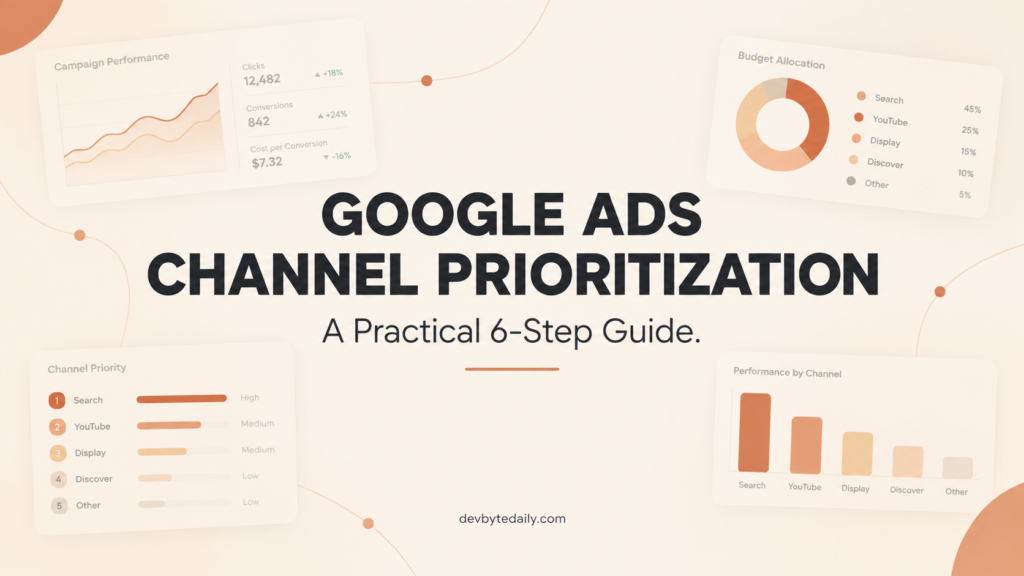
If you manage a Google Ads account, there’s a good chance you’ve turned off the Google Display Network or search partners at some point just to stop them from eating into your budget. Google Ads channel prioritization changes that trade-off. Announced on October 14, 2026, it lets you rank channels as high or low priority and cap what the low-priority ones can spend, instead of shutting them off entirely.
Tal Akabas, Director of Product Management for Google Ads, announced the change on Google’s official blog, and Google’s Help Center has already published the setup steps and eligibility details. This guide walks through what the feature does, who should set it up, and how to turn it on in your account, plus what to watch before Google folds eligible Search campaigns into it automatically in February 2027.
This is written for PPC managers, in-house marketers, and website owners who run their own Google Ads accounts and want more control over where budget goes without losing reach entirely. By the end, you’ll know exactly where to click, what the settings mean, and what to check before you rely on them.
What Google Ads Channel Prioritization and Budget Allocation Actually Do
These are two separate but connected controls inside Google Ads.
Channel prioritization lets you label a channel, or a grouping of channels, as High priority or Low priority. High-priority channels get funded first. Any budget left over goes to low-priority channels, within your bid strategy’s target if you’re running Target CPA or Target ROAS (two automated bidding strategies that aim for a specific cost or return per conversion).
Budget allocation is the companion setting, and it only applies to low-priority channels. You set a maximum percentage of the campaign’s average daily budget that a low-priority channel can use. Google treats this as a best-effort cap, calculated against your budget, not your actual spend, so some days may run slightly over or under.
In Performance Max and Demand Gen campaigns (Google’s automated, cross-network campaign types), surfaces like Search, YouTube, Gmail, Maps, and Discover are grouped together under a single “Google channels” label, separate from the Google Display Network and search partners.
Who Should Set Up Google Ads Channel Prioritization
This is most useful if you’ve ever disabled the Google Display Network or search partners to protect Search campaign performance, then wondered whether you were leaving conversions on the table. Channel prioritization lets you test those networks again with a hard ceiling on spend, rather than an all-or-nothing switch.
It’s also relevant if you manage shared budgets across multiple campaigns, since the settings apply to every campaign sharing that budget. And if you’re already tracking other recent Google Ads changes, such as the account-level shift toward automated promotions on Search campaigns, this is another case where Google is giving advertisers an opt-in control rather than an automatic default, at least for now.
Paid media teams managing budgets across platforms will recognize the pattern. Microsoft Advertising has been simplifying its own bidding controls too, including the move covered in our Microsoft Ads Max CPC removal guide. Google’s channel prioritization update is part of the same broader trend: platforms consolidating manual levers into fewer, higher-impact settings.
Before You Start: What to Check First
Channel prioritization began rolling out progressively on October 15, 2026, according to Google’s Help Center, so availability can vary by account and campaign type even now. Before you go looking for the setting, confirm a few things.
- You need a standard Google Ads account. Google’s documentation states you can’t set channel prioritization from a manager (MCC) account.
- You can manage these settings directly in Google Ads or in Search Ads 360. Google Ads API and Google Ads Editor support is listed as “coming soon,” so if you manage campaigns through scripts or bulk editing, you’ll need to use the UI for now.
- The feature currently covers Search, Shopping, Performance Max, and Demand Gen campaigns. Each campaign type has a different set of channels you can prioritize, which the steps below cover.
How to Set Up Google Ads Channel Prioritization in 6 Steps
You can set these controls at the account level, which applies as a default to every campaign of that type, or at the campaign level, which overrides the account default. Most teams will want to start at the account level and override individual campaigns only where needed.
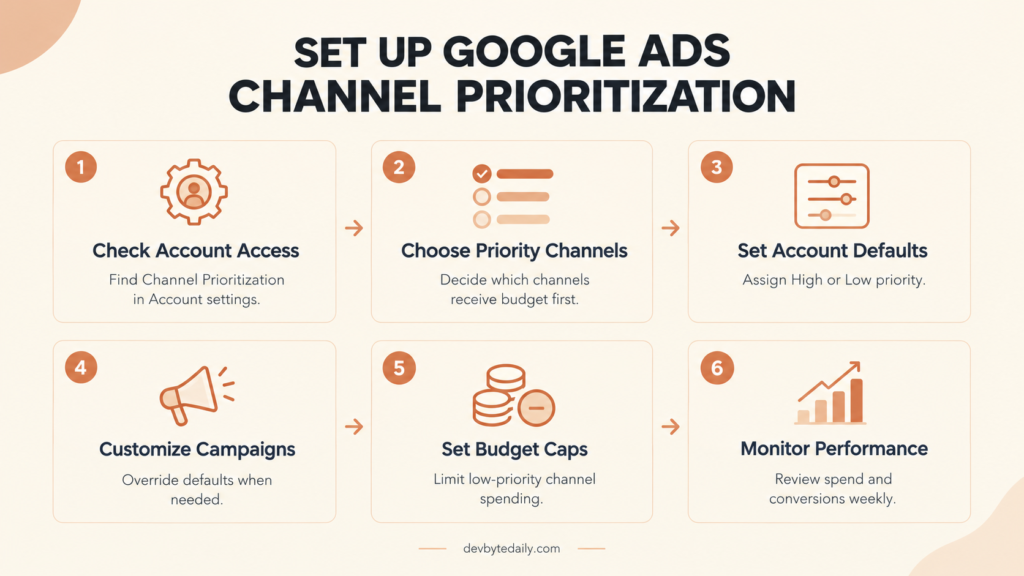
Step 1: Confirm Your Account Has Access
Go to Account settings in Google Ads and look for a card labeled “Channel Prioritization.” If you don’t see it yet, the rollout likely hasn’t reached your account. Google says availability depends on campaign type and rollout timing, so check back over the following weeks if it’s missing.
Step 2: Decide Which Channels Deserve High Priority
Before you touch any settings, decide which channels are already carrying your account’s performance. For most Search advertisers, that’s Google Search itself. For Performance Max, it’s usually the “Google channels” group. Everything else is a candidate for Low priority with a budget cap, not a full shutoff.
My take: I’d start conservative. Set the channel you’d normally leave untouched to High, set everything else to Low with a modest allocation, and watch performance for at least one to two weeks before expanding it. Decisions based on a few days of data in a new feature tend to get reversed anyway.
Step 3: Set Account-Level Channel Prioritization
From the “Channel Prioritization” card in Account settings, select the campaign type you want to configure, then assign High priority or Low priority to each available channel. All channels default to High until you change them. Click Save when you’re done.
This becomes the default for every campaign of that type, unless a specific campaign or a shared budget overrides it.
Step 4: Override Settings at the Campaign Level When Needed
Some campaigns need different treatment than your account default, particularly if one campaign is testing a network more aggressively than others. Open the campaign, go to Settings, and expand the “Channel Prioritization” card. Select “Use campaign-level settings” to override the account default, assign your tiers, and save. You can switch back to the account default at any time.
If the campaign uses a shared budget, remember that these settings apply to every campaign sharing that budget, not just the one you’re editing.
Step 5: Set a Budget Allocation Percentage for Low-Priority Channels
Budget allocation is optional and only available for channels you’ve marked Low priority. Enter a percentage of the campaign’s average daily budget that channel is allowed to use. Setting it to 0% stops spend on that channel entirely, which is a safer way to pause a channel than leaving it with no cap and hoping prioritization alone holds it back.
Keep in mind this cap is calculated against your budget, not your actual spend, resets daily, and doesn’t roll over. It’s a steering wheel, not a hard wall.
Step 6: Monitor Spend Weekly and Adjust
Check channel-level spend and conversions weekly for the first month. Google notes the allocation is best-effort, so actual spend on a low-priority channel can occasionally exceed your percentage on a given day. If you consistently see a low-priority channel overspending its cap, that’s worth flagging as you would any other bidding anomaly, and adjusting the percentage down.
How Priority Tiers Interact With Your Bid Strategy
The effect of channel prioritization depends on which bid strategy your campaign uses, according to Google’s documentation.
If you’re running Target CPA, Target ROAS, or Target CPC with a budget limit, high-priority channels get funded first, within your target. Budget only shifts to low-priority channels once the high-priority ones can still hit that target with room to spare.
If you’re running Maximize Conversions, Maximize Conversion Value, Maximize Clicks, Manual CPC, or Target Impression Share, high-priority channels still spend first, and whatever budget remains goes to low-priority channels, without the same target-based gating.
In other words, if your campaign isn’t budget-constrained and you’re running Target CPA or Target ROAS, channel prioritization alone may not change much. That’s exactly where budget allocation matters most, since it caps spend directly rather than waiting for a target to be satisfied first.
The February 2027 Google Display Network Deadline for Search Campaigns
This is the part most Search advertisers shouldn’t ignore. Starting in February 2027, Google will automatically move Search campaigns that have Display Expansion turned on into channel prioritization and budget allocation. The current spend allocation setup for those campaigns ends at that point, which can shift how much budget goes to Google Search, search partners, and the Google Display Network.
If you want to keep your current Display Network behavior as close as possible to what it is today, Google’s documentation recommends setting the Google Display Network to Low priority with a 50% daily budget allocation before the migration happens. That’s a best-effort match, not a guarantee of identical spend.
One more detail worth flagging for Search advertisers using Target Impression Share: the Google Display Network will no longer serve on Search campaigns using that bid strategy once this change takes effect.
If you set channel priorities on a Search campaign before February 2027, those settings apply immediately and replace the existing Display Expansion budget behavior right away, rather than waiting for the deadline.
Limitations to Know Before You Flip the Switch
A few constraints are worth knowing before you roll this out across an account.
- Campaign total budgets only support these controls on Demand Gen campaigns. Other campaign types using a campaign total budget won’t see an effect from channel prioritization or budget allocation.
- Shared budgets require every linked campaign to be the same campaign type. You can’t mix a Search campaign and a Performance Max campaign under one shared budget with these controls.
- Experiments don’t support multi-campaign shared budgets, and every channel inside an experiment shares a single priority tier.
- No API or Editor support yet. If your team manages campaigns through scripts, bulk sheets, or Google Ads Editor, you’re limited to the Google Ads or Search Ads 360 UI for now.
- Demand Gen doesn’t support budget allocation. You can prioritize channels there, but you can’t cap spend by percentage the way you can for Search, Shopping, and Performance Max.
My Take: Where This Fits in a Paid Media Audit
In my view, channel prioritization is worth adding to a standard Google Ads account audit, right next to checking Smart Bidding Exploration settings and campaign budget pacing. It’s a low-risk way to answer a question a lot of accounts never settle: whether the Display Network or search partners were actually hurting performance, or just getting turned off out of caution.
I wouldn’t roll it out account-wide on day one. A phased approach, starting with one or two campaigns where you already suspect a channel is under- or over-contributing, gives you a cleaner read before you touch the rest of the account. Given that Google is going to apply a version of this automatically to Search campaigns with Display Expansion in February 2027 regardless, getting familiar with the settings now is a reasonable use of a slow week.
If your paid media mix extends beyond search, it’s worth applying the same discipline elsewhere. We’ve covered related budget and bidding shifts on other platforms, including Meta’s ad tooling in our Meta Ads MCP server guide, which is a useful next read if you’re managing cross-channel paid budgets from one team.
Why This Matters
Channel prioritization and budget allocation give Google Ads accounts a middle option between running a channel at full spend and turning it off completely. For accounts with real budget to protect, that middle option is usually the more profitable one. Set it up on an account-level default first, override a campaign or two where you have reason to, and check the numbers weekly for the first month. If you run Search campaigns with Display Expansion on, put the February 2027 deadline on your calendar now, not after it changes your spend without warning.





Leave a response