

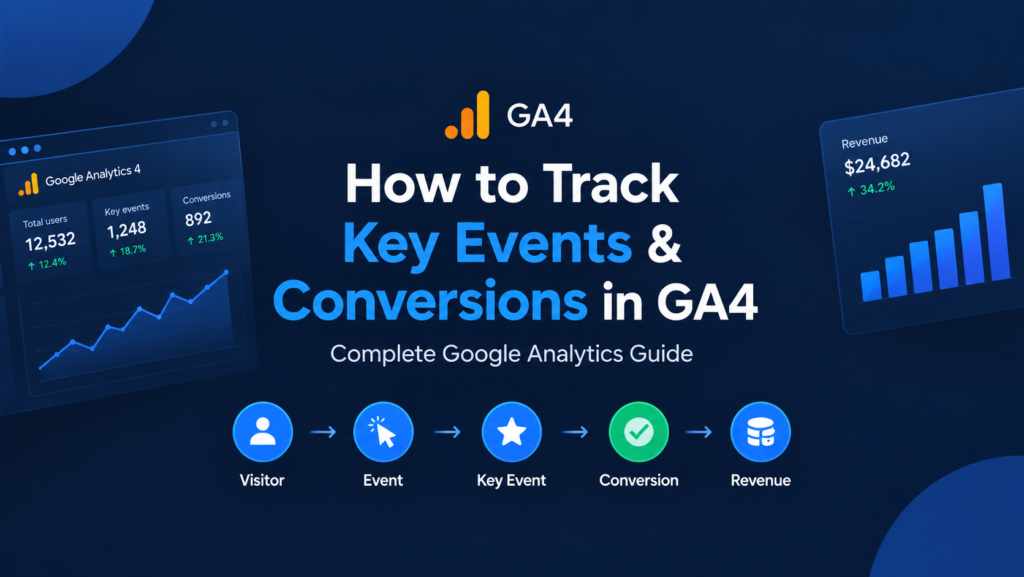
Getting traffic is only half the job.
If you run a website, you also need to know what visitors actually do after they arrive. Do they submit a form? Buy something? Sign up for your newsletter? Download a resource? Start checkout?
That is where Google Analytics 4 (GA4) becomes useful.
GA4 lets you track these actions as events, identify the actions that matter most to your business as key events, and use those key events to create conversions for advertising and campaign optimization.
In this guide, you’ll learn how to track key events and conversions in GA4, from creating an event to verifying it and analyzing the results.
What Are Events, Key Events, and Conversions in GA4?
Before setting up tracking, it helps to understand the terminology.
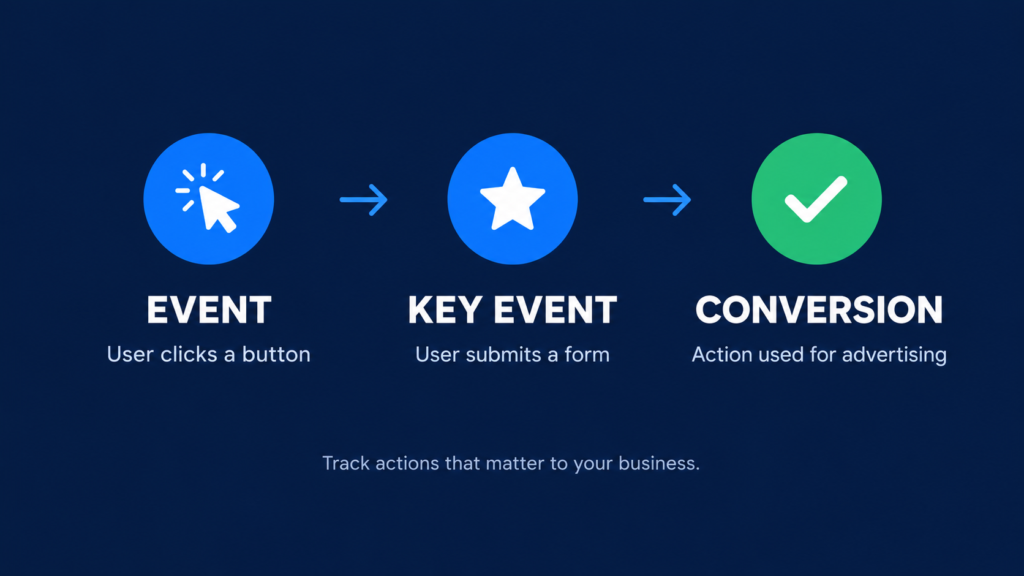
An event records something a user does on your website or app. Examples include a page view, form submission, purchase, file download, or video interaction.
A key event represents an event that matters particularly to your business. Google lets you take an existing event and mark it as a key event so you can measure important user actions in Analytics.
A conversion has a more specific role. In the current GA4 model, conversions are used to measure important actions for advertising and campaign optimization, particularly when you use Google Ads.
The basic tracking journey looks like this:
Event → Key Event → Conversion
For example:
Form submission → generate_lead → Google Ads conversion
This distinction matters because an action can be valuable for understanding user behavior without necessarily being an advertising conversion.
Why Conversion Tracking Matters
Website traffic alone doesn’t tell you whether your marketing works.
Imagine two websites receive 10,000 visitors each. One generates 20 leads while the other generates 300. Looking only at traffic would make the websites appear equally successful.
Conversion tracking gives you the missing context.
With properly configured GA4 tracking, you can understand:
- Which channels generate valuable actions
- Which landing pages produce more leads
- Which campaigns generate purchases
- How users move through your website
- Which marketing activities contribute to key events
- Whether your SEO and paid campaigns produce business results
For a broader digital marketing strategy, you can also combine GA4 insights with the SEO principles covered across DevByteDaily’s technology and digital marketing content.
How to Track Key Events in GA4
The setup usually follows five main steps.
Step 1: Identify the Action You Want to Track
Start with the business action, not the GA4 interface.
Ask:
“What action tells me that this visitor is valuable?”
For a lead-generation website, that might be:
- Contact form submission
- Consultation request
- Newsletter signup
- Quote request
- Account registration
For an ecommerce website, it could include:
- Product view
- Add to cart
- Checkout
- Purchase
For a content website, useful actions might include:
- Newsletter signup
- Resource download
- Important CTA click
- Account creation
Choose actions that connect directly to your business objectives.
Don’t mark every interaction as a key event. If everything is important, nothing is.
Step 2: Check Whether GA4 Already Collects the Event
GA4 automatically collects certain events, while other events require additional configuration.
Before creating a custom event, check Admin → Data display → Events.
You may already have the event you need.
For example, ecommerce implementations can use recommended events such as add_to_cart, begin_checkout, and purchase. Google also provides recommended event names and parameters for different types of websites and apps.
Using Google’s recommended event names when they fit your use case can make your implementation more consistent and easier to analyze.
Step 3: Create a New Event
If GA4 doesn’t already collect the action you need, create a new event.
Go to:
Admin → Data display → Events → Create event
GA4 allows you to create events from existing events without changing your website code in many situations.
For example, suppose your website sends visitors to this confirmation page after they submit a contact form:
/contact-us-submitted
You could create an event called:
generate_lead
and use the confirmation page view as the condition that triggers it.
Google specifically recommends using appropriate recommended events such as generate_lead where possible rather than creating unnecessary custom event names.
Step 4: Mark the Event as a Key Event
Once your event exists, you can tell GA4 that it represents an important business action.
Go to:
Admin → Data display → Events
Find your event and mark it as a key event.
You can also create a new event and select the option to mark it as a key event during setup, depending on your configuration and permissions.
For example:
| Event | Business Meaning | Key Event? |
|---|---|---|
page_view |
User viewed a page | Usually No |
scroll |
User reached a scroll threshold | Usually No |
generate_lead |
User submitted a lead form | Yes |
sign_up |
User created an account | Often Yes |
purchase |
User completed a purchase | Yes |
GA4 also automatically treats some important events as key events, including purchase for web and app properties.
Step 5: Verify Your Tracking
Never assume your tracking works just because you created the event.
Test it.
Open your website and act yourself. Then check the GA4 Realtime report.
GA4’s Realtime report can show key events as users trigger them, while DebugView provides a more detailed way to inspect events during testing.
For example:
- Open your website.
- Submit the contact form.
- Wait for the event to appear.
- Open GA4.
- Check Realtime or DebugView.
- Confirm that
generate_leadappears. - Confirm that GA4 treats it as a key event.
Don’t skip this step. A tracking configuration that looks correct but doesn’t record real user actions can lead to completely misleading marketing reports.
How to Create Google Ads Conversions from GA4
If you use Google Ads, you may want to turn an important GA4 key event into a conversion for advertising measurement and optimization.
The process generally follows this structure:
Website action → GA4 event → Key event → Google Ads conversion
For example:
A visitor submits your contact form.
GA4 records:
generate_lead
You mark generate_lead as a key event.
You then create a Google Ads conversion based on that key event.
Google explains that Google Ads conversions can be created from Analytics key events and used for campaign measurement and bidding. Availability of some conversion-management features can vary by property.
This is particularly useful when you want advertising data to focus on meaningful business outcomes instead of simple traffic metrics.
Common GA4 Conversion Tracking Examples
Your key events should reflect your business model.
Lead Generation Website
Track:
generate_leadsign_up- Contact form submissions
- Consultation requests
Ecommerce Website
Track:
view_itemadd_to_cartbegin_checkoutpurchase
Google’s recommended ecommerce events also support parameters such as product information, currency, value, quantity, and items.
SaaS Website
Track:
- Account creation
- Free trial signup
- Demo request
- Subscription purchase
Content Website
Track:
- Newsletter signup
- Resource download
- Important CTA interaction
- Membership registration
The goal remains the same: connect user behavior with meaningful business outcomes.
Common GA4 Tracking Mistakes
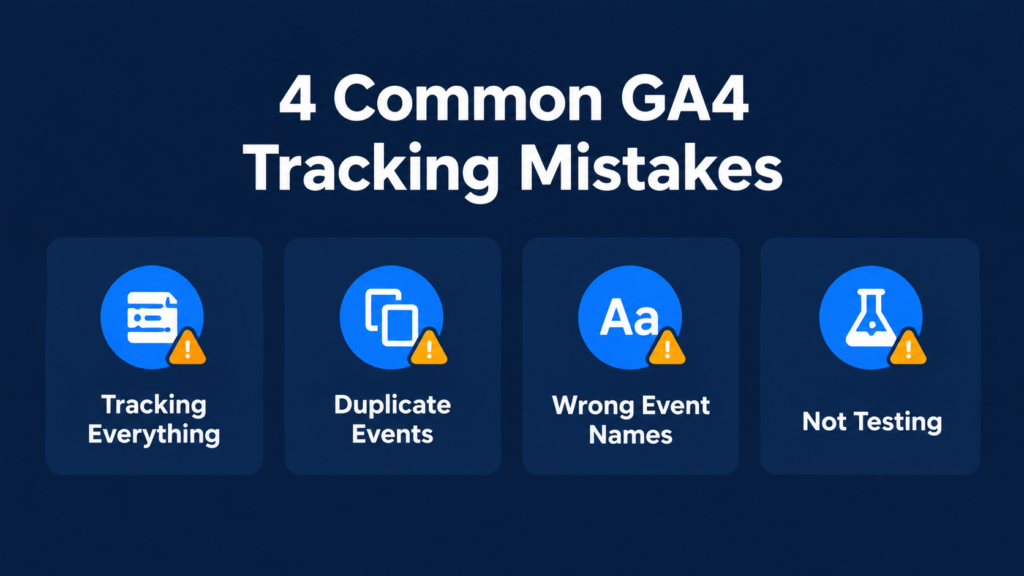
1. Tracking Everything as a Conversion
A page view doesn’t automatically equal business success.
Keep your key events focused on meaningful actions.
2. Creating Duplicate Events
If GA4 already receives an event, don’t create another event that measures exactly the same action unless you have a clear reason.
Duplicate tracking can inflate your numbers.
3. Using Generic Custom Event Names
If Google provides an appropriate recommended event, use it instead of inventing a completely different name.
For example, use generate_lead for a genuine lead-generation action when it fits your implementation.
4. Not Testing the Setup
Always test your events through Realtime or DebugView before trusting the data.
5. Confusing Key Events with Google Ads Conversions
A key event helps you analyze important behavior in Analytics.
A conversion has a stronger advertising and campaign-optimization role.
Understanding that distinction prevents confusion when comparing GA4 and Google Ads reports.
How to Measure Conversion Performance
Once your key events start collecting data, don’t stop at the event count.
Look at the bigger picture.
Analyze:
- Users who triggered the key event
- Traffic source
- Landing page
- Device
- Campaign
- Geographic performance
- Conversion rate
- Revenue, where applicable
GA4 reports and Explorations can help you understand the touchpoints associated with key events and evaluate how different channels contribute to those actions.
For example, you might discover that organic search generates fewer visitors than social media but produces significantly more leads.
That insight can change where you invest your SEO and content resources.
GA4 Key Events vs. Conversions
| Feature | Key Events | Conversions |
|---|---|---|
| Main purpose | Measure important business actions | Measure advertising performance |
| Used in GA4 | Yes | Yes, depending on configuration |
| Used for behavior analysis | Yes | Yes |
| Used with Google Ads | Can provide the basis for conversions | Yes |
| Example | generate_lead |
Google Ads lead conversion |
| Flow | Event → Key Event | Key Event → Conversion |
Google’s terminology changed to separate these concepts more clearly. Existing historical conversion data remains available as key-event data, so the change does not mean you need to rebuild your entire measurement history.
Frequently Asked Questions
How do I track key events and conversions in GA4?
First, create or identify the event representing the important action. Then mark that event as a key event in Admin → Data display → Events. If you need the action for Google Ads, create a conversion based on the relevant key event.
What is the difference between a GA4 event and a key event?
An event records an interaction. A key event identifies an interaction that is particularly important to your business.
Are conversions still available in GA4?
Yes. Google now uses key events for important business actions measured in Analytics, while conversion refers more specifically to conversion measurement and advertising use cases.
How long does it take for a new key event to appear?
Real-time data can appear within minutes after a user triggers the event, while standard reports can take longer to process. Google notes that newly marked key events can take up to 24 hours to appear in standard reports.
Can I track purchases as GA4 key events?
Yes. The purchase event is automatically treated as a key event for web and app properties.
Can I create a key event without changing website code?
Often, yes. GA4 allows you to create certain events from existing events through the Analytics interface, such as creating a lead event based on a confirmation-page view.
Final Takeaways
Effective GA4 tracking starts with a simple question:
What action actually matters to my business?
Once you answer that, the implementation becomes much easier.
Use this workflow:
1. Identify the important action.
2. Check whether GA4 already collects it.
3. Create an event if necessary.
4. Mark the event as a key event.
5. Test it using Realtime or DebugView.
6. Create a Google Ads conversion when advertising optimization requires it.
7. Analyze the resulting data by channel, campaign, landing page, and user behavior.
The biggest mistake is treating every interaction as a conversion. Instead, build a measurement system around the actions that actually move your business forward.
When you connect those actions with traffic sources, campaigns, and revenue, GA4 becomes more than a traffic counter—it becomes a practical decision-making tool.





Leave a response