
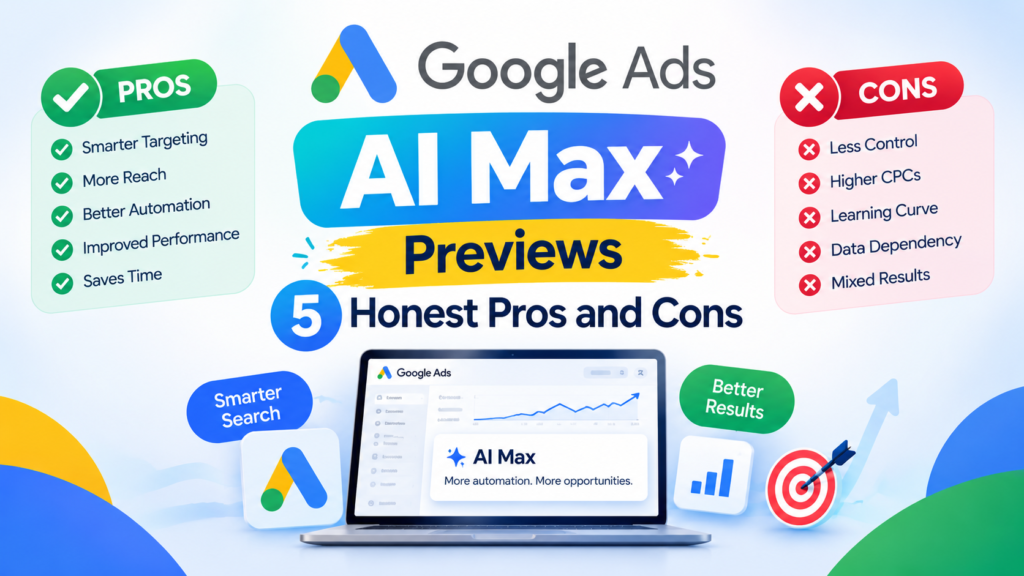
Google Ads just gave advertisers a way to see AI-generated search ad copy before it goes anywhere near a live campaign. Google Ads AI Max previews let you type in a landing page URL and get up to ten sample headlines and descriptions back in about 30 seconds, without opting in to anything.
It’s a small feature with a real purpose. Google’s automated ad copy tool, text customization, has generated headlines and descriptions on its own since it launched as “automatically created assets,” and plenty of advertisers never liked flying blind. This breakdown looks at what the preview does, where it helps, where it falls short, and whether it’s worth your time.
What Are Google Ads AI Max Previews?
Google Ads AI Max previews are a new panel inside the Asset optimization section of AI Max for Search campaigns. You enter (or already have) a final landing page URL, click to preview examples, and Google Ads shows you a sample set of AI-generated headlines and descriptions pulled from that page.
Search Engine Roundtable first reported the feature on October 9, 2026, and Google documents it in its official text customization help page. The key detail is that you do not need to turn text customization on to see the preview. You can check the output, decide you don’t like it, and never opt in at all.
This matters because text customization is not a separate add-on anymore. Since September 2026, Google has been automatically upgrading campaigns that used the old “automatically created assets” setting into AI Max, which bundles text customization together with broad match search term expansion and final URL expansion. Previewing the text output in isolation gives advertisers a way to evaluate one piece of that bundle before committing. It follows a similar pattern to how Google rolled out other automated features inside Google Ads: more automation by default, with opt-outs and review tools arriving after advertiser pushback.
How the Google Ads AI Max Preview Actually Works
The mechanics are straightforward once you find the setting. Here’s the flow as reported by Google Ads Help, Search Engine Roundtable, ContentGrip, and MediaPost:
- Enter a landing page URL. You can do this during new campaign creation or while editing an existing Search campaign, inside AI Max’s Asset optimization settings.
- Click “Preview examples.” Google’s AI analyzes the page and generates a representative sample, typically up to 10 headlines and descriptions.
- Review in under 30 seconds. Google says most previews return quickly enough to check mid-setup, rather than after a campaign is already live.
- Guideline filtering applies automatically. If you’ve set text guidelines, such as excluded words or topics to avoid, the preview filters out assets that break those rules before you ever see them.
- No guidelines left standing, no preview. If your exclusion rules are strict enough to block every possible asset, Google Ads prompts you to loosen them rather than returning an empty panel.
What the preview is not: a guarantee of what will actually serve. Google and third-party coverage both stress that the sample is illustrative. Once text customization is live, the real combinations served to users depend on the query, your other assets, and ongoing optimization, which you’d still need to monitor through the asset and combination reports.
Why Google Built an AI Max Preview Tool
Text customization has a documented trust problem. It launched as “automatically created assets,” a feature that generated extra headlines and descriptions and started serving them without advertisers reviewing each one first. Google’s own help documentation still describes the main safety net as after-the-fact: you check an asset report, spot something off-brand, and remove it.
That after-the-fact model creates real risk for brand-sensitive advertisers. A generated headline that overstates a claim, uses the wrong tone, or misreads a landing page can serve to real searchers before anyone on the account catches it. Search Engine Land’s own coverage of AI Max for Search notes that even experienced PPC practitioners stay “cautiously optimistic” and still manually revise generated copy before it reaches a client’s account.
The preview tool is Google’s answer to that complaint, at least partially. It moves part of the review step earlier, before the asset ever has a chance to serve, which is a meaningfully different workflow than catching problems after the fact.
The Honest Pros of Google Ads AI Max Previews
Judged on its own terms, the feature solves a specific, narrow problem well. Here’s what actually works:
- You get a look before you commit. This is the headline benefit. You no longer have to opt in to text customization just to find out whether the generated copy is any good.
- It’s fast. A roughly 30-second turnaround means you can check a page’s output while you’re still in the campaign setup flow, not days later in a report.
- Guideline filtering happens automatically. If you’ve already set exclusion rules, the preview respects them instead of showing you assets you’d have to reject anyway.
- No extra cost. This is a native Google Ads feature, included for any advertiser running or setting up a Search campaign. There’s no separate subscription or tool to buy.
- It surfaces landing page problems early. Because the preview reads your actual final URL, a bad or outdated landing page can produce obviously bad ad copy, which is useful diagnostic information on its own.
The Real Limitations and Cons
None of this makes the tool a full solution, and advertisers should go in with clear expectations:
- A sample isn’t the full picture. Up to 10 examples cannot represent every headline and description combination a live campaign might eventually generate and serve.
- It’s tied to AI Max, not a standalone feature. You can preview without opting in, but using text customization at all still means adopting it inside the broader AI Max bundle, which also includes broad match-style search term expansion.
- Final URL expansion ships enabled by default. Once you do opt into AI Max, Search Engine Land has reported that URL expansion defaults to on and can redirect traffic to a different page than the one you specified, overriding pinned assets in some cases. You have to notice and uncheck it.
- API and Google Ads Editor support lags. Toggling AI Max settings can cause errors for API-based account management workflows, which matters for agencies running bulk changes.
- Preview quality still depends on your landing page. Thin, outdated, or poorly structured pages will produce weak previews, and the tool won’t tell you how to fix the underlying content.
- Performance claims are vendor-supplied. Any lift numbers Google or its early-access partners report should be treated as marketing claims until you’ve tested them in your own account.
Who Google Ads AI Max Previews Are For
This feature is genuinely useful for a specific type of advertiser:
- In-house marketers managing their own Search campaigns who want a sanity check before enabling automated ad copy, without hiring a specialist to audit every asset after launch.
- Brand-conscious advertisers in regulated or reputation-sensitive categories (finance, healthcare, legal) who need to catch inaccurate or off-tone claims before they’re public.
- Small teams without dedicated PPC staff who were previously turning text customization off entirely out of caution, and now have a lower-risk way to evaluate it first.
- Agencies onboarding new clients who want a quick, concrete way to show a client what AI Max–generated copy will look like before asking for sign-off.
If you’re still deciding whether AI-driven copy belongs in your account at all, it’s worth reading a broader look at how AI is reshaping Google Ads before you opt in to any one feature.
Who Should Skip It
It’s just as useful to be clear about who doesn’t need this:
- Advertisers who already review assets manually at scale and have a tight after-the-fact QA process won’t gain much from an earlier, smaller sample.
- Accounts managed heavily through the Google Ads API or bulk editing tools should hold off until Google clarifies how AI Max settings interact with automated account management, given the reported API friction.
- Advertisers who’ve already decided against text customization for policy reasons (certain regulated industries, strict legal review requirements) don’t need a preview of a feature they’re not going to use.
- Anyone chasing a quick win should know this is a workflow improvement, not a performance feature. It won’t by itself raise conversions or lower costs.
Google Ads AI Max Previews vs. Keeping Text Customization Off
The realistic alternative isn’t a competing tool, it’s simply leaving text customization switched off and sticking with manually written responsive search ads. Here’s how the two compare.
Control: Manual RSAs give you full control over every headline and description, with no AI-generated copy in the mix. AI Max previews give you partial, upfront control: you see samples before launch, but live performance still blends generated and manual assets once you opt in.
Effort: Writing and testing RSA assets by hand takes real time, especially across many landing pages. AI Max previews cut that initial drafting effort dramatically, assuming the generated copy is close enough to usable.
Risk profile: Manual-only campaigns carry zero AI-copy brand risk. AI Max previews reduce, but don’t eliminate, that risk, since only a sample is checked before launch and later-generated combinations still need monitoring through asset reports.
Best use case: If your landing pages are solid and your brand voice is flexible, previewing before opting in is a reasonable middle ground. If your copy requires precise legal or compliance language, manual control is still the safer default, preview or not.
How to Try the Preview Yourself
If you want to test this without committing to anything, here’s the practical path:
- Open an existing Search campaign (or start creating a new one) and find the AI Max settings.
- Go to the Asset optimization section and locate the text customization preview panel.
- Enter your final landing page URL if it isn’t already populated, and click to preview examples.
- Review the sample headlines and descriptions against your brand voice, accuracy, and any compliance requirements.
- If you’ve set text guidelines (excluded words, tone preferences), confirm the preview respects them before deciding.
- Decide whether to opt in to text customization, and separately, whether to leave final URL expansion enabled or turn it off.
- If you do opt in, check the asset report and combination report weekly for the first month to catch anything the preview didn’t show you.
Pairing this review habit with a wider marketing automation strategy makes it easier to keep AI-generated ad copy in sync with the rest of your campaigns instead of reviewing it in isolation.
Pricing: What This Actually Costs
Nothing, directly. Google Ads AI Max previews are built into the standard Google Ads interface for any advertiser running Search campaigns, with no separate fee, subscription, or add-on purchase. The real cost is indirect: your regular Google Ads spend, plus the time your team spends reviewing output and monitoring asset performance after launch.
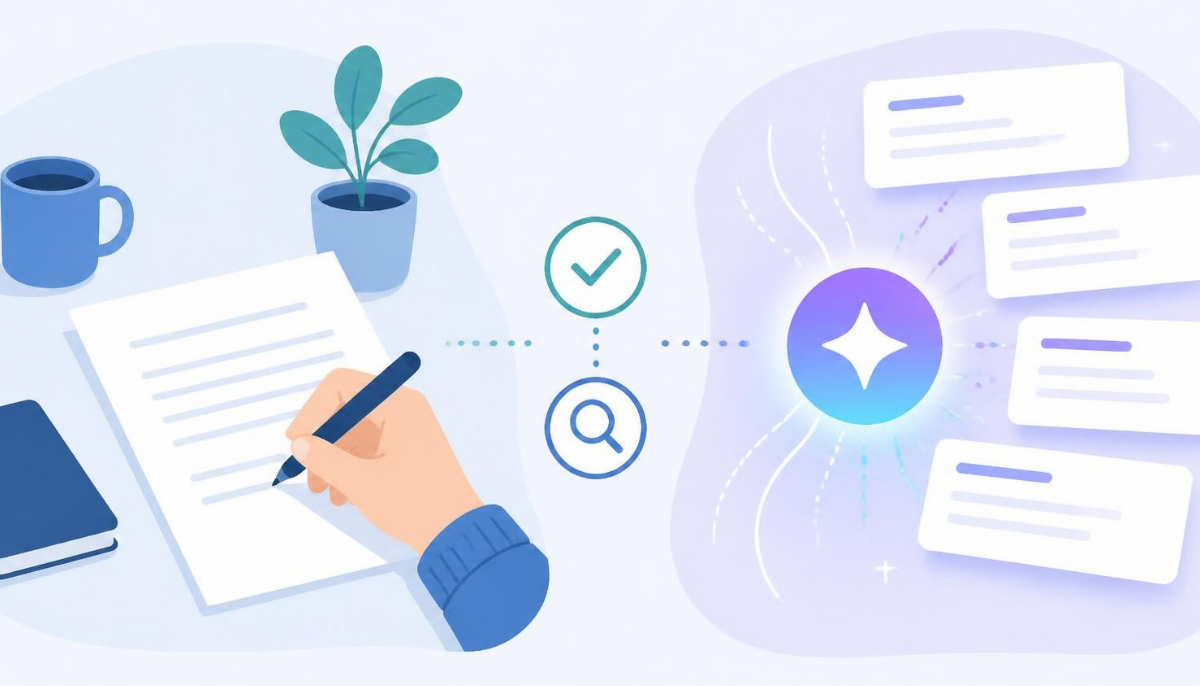
A simple way to picture the workflow: instead of AI-generated ad copy going live first and getting reviewed later, Google Ads AI Max previews let you check a sample before you ever opt in.
FAQ: Google Ads AI Max Previews
Do I have to opt in to AI Max to see a preview?
No. That’s the point of the feature. You can enter a landing page URL and view sample headlines and descriptions without enabling text customization or the broader AI Max bundle.
How many sample assets does the preview show?
Up to 10 headlines and descriptions per preview, generated from your final landing page URL, according to Google Ads Help and multiple independent reports.
Will the preview match exactly what serves once I opt in?
Not exactly. The preview is a representative sample, not the full set of combinations a live campaign may eventually generate and serve. You still need to monitor asset and combination reports after launch.
Does the preview respect my text guidelines?
Yes. If you’ve set exclusion rules for specific words, topics, or tone, the preview filters out non-compliant samples automatically. If your rules block everything, Google Ads will prompt you to adjust them.
Is this the same as “automatically created assets”?
Text customization is Google’s rebrand of automatically created assets, now bundled inside AI Max for Search. The preview is a new layer on top of that existing feature, not a separate product.
Google Ads AI Max previews don’t fix every concern advertisers have raised about automated ad copy, but they do fix a real and specific one: the inability to see what you’re getting before you turn it on. If you’ve been avoiding text customization purely out of uncertainty, this is a low-risk way to finally check it out. If your concerns are about the broader AI Max bundle, default URL expansion, or API support, the preview doesn’t resolve those, and you should weigh them separately before opting in.
Next action: open one Search campaign you’re considering for AI Max, run the preview against its real landing page, and judge the sample against your actual brand guidelines before you decide anything else.

Leave a response